Drivers don't need an email address or password. You sign in once with your company's PIN and your name, and the app remembers you.
What you need
- The LoadLedger app on your phone
- Your company PIN, a 6-digit number from your trucking company's office or dispatcher
Signing in
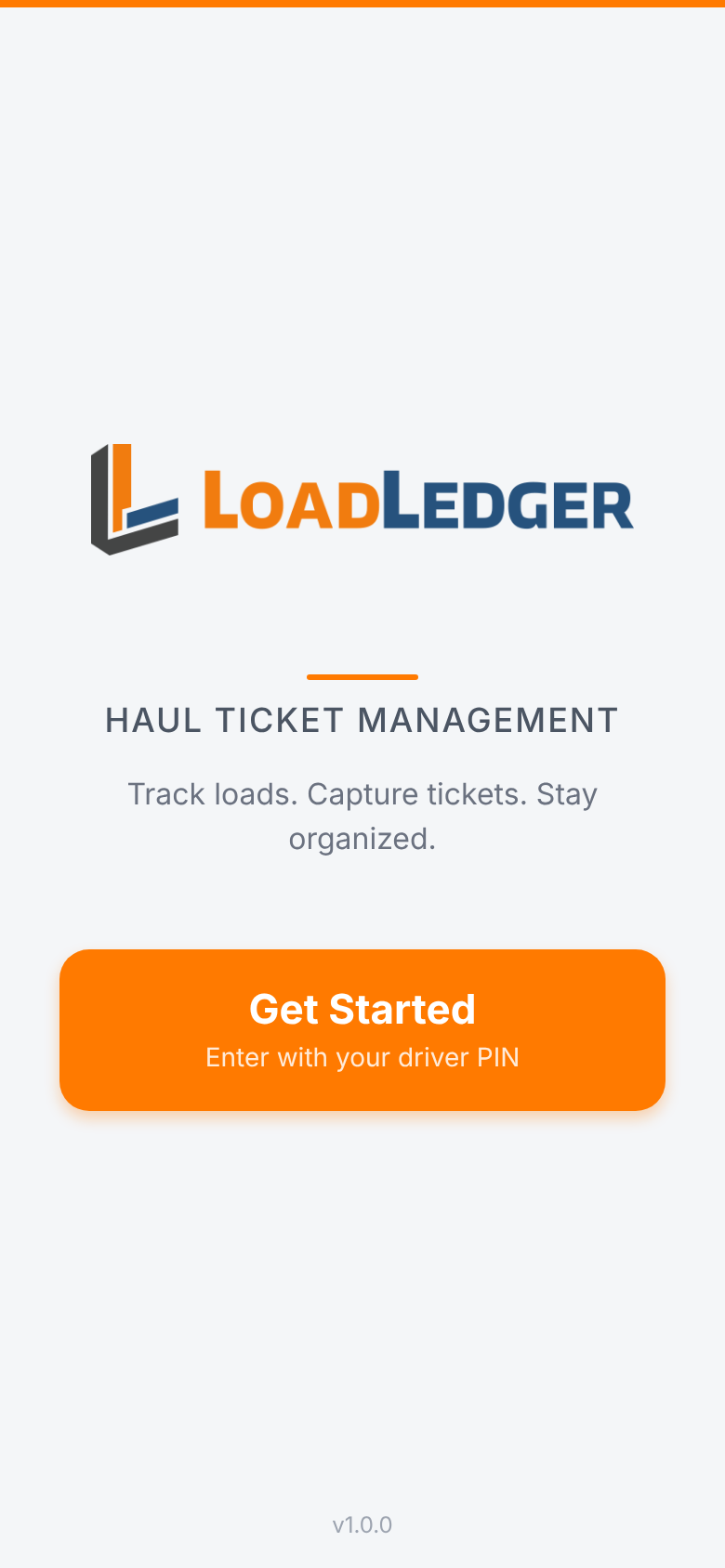
Step 1. Open the app and tap Get Started
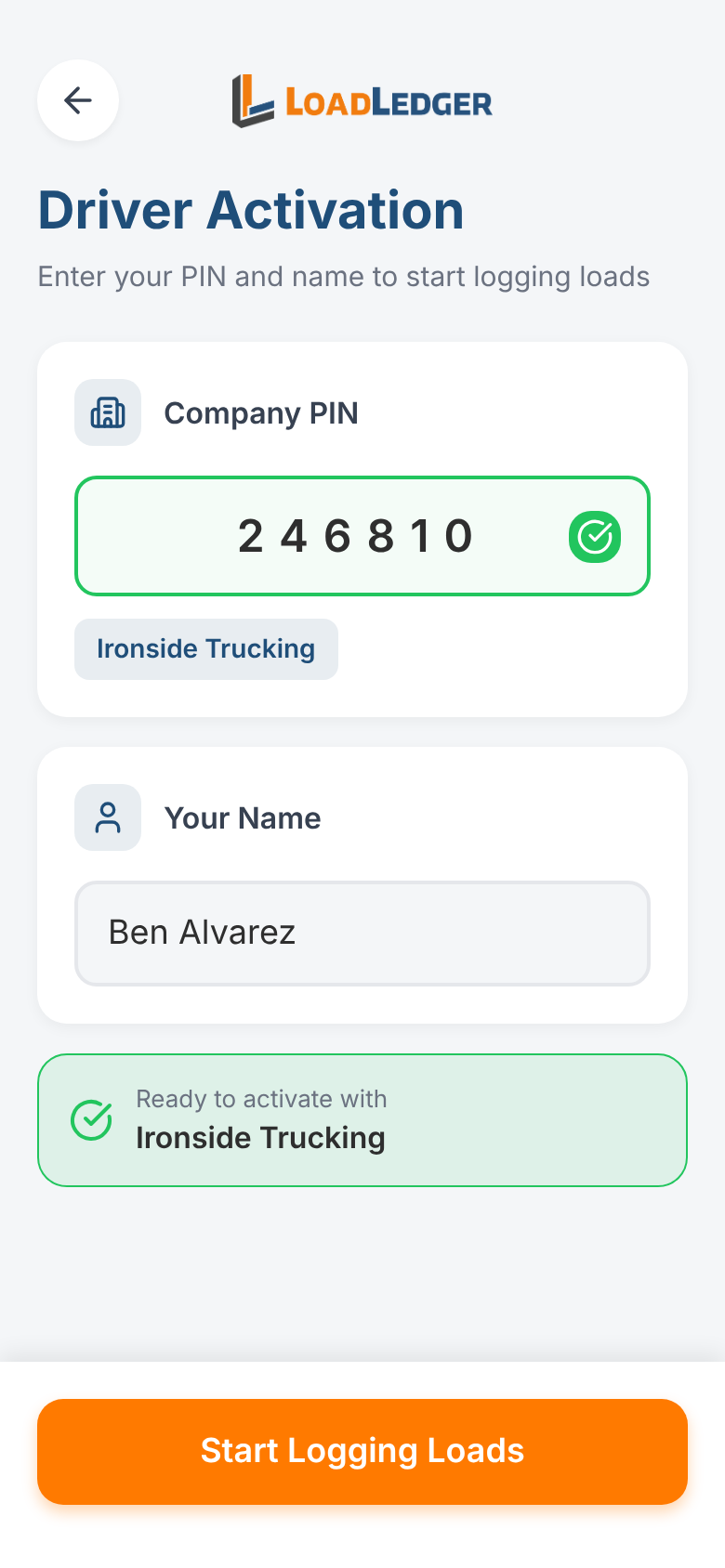
Step 2. Enter your company PIN. When it's right, the app shows your company's name
Step 3. Enter your name the way the office knows you, then tap Start Logging Loads
If your company hauls for more than one contractor, you'll be asked which one you're hauling for.
Start your day
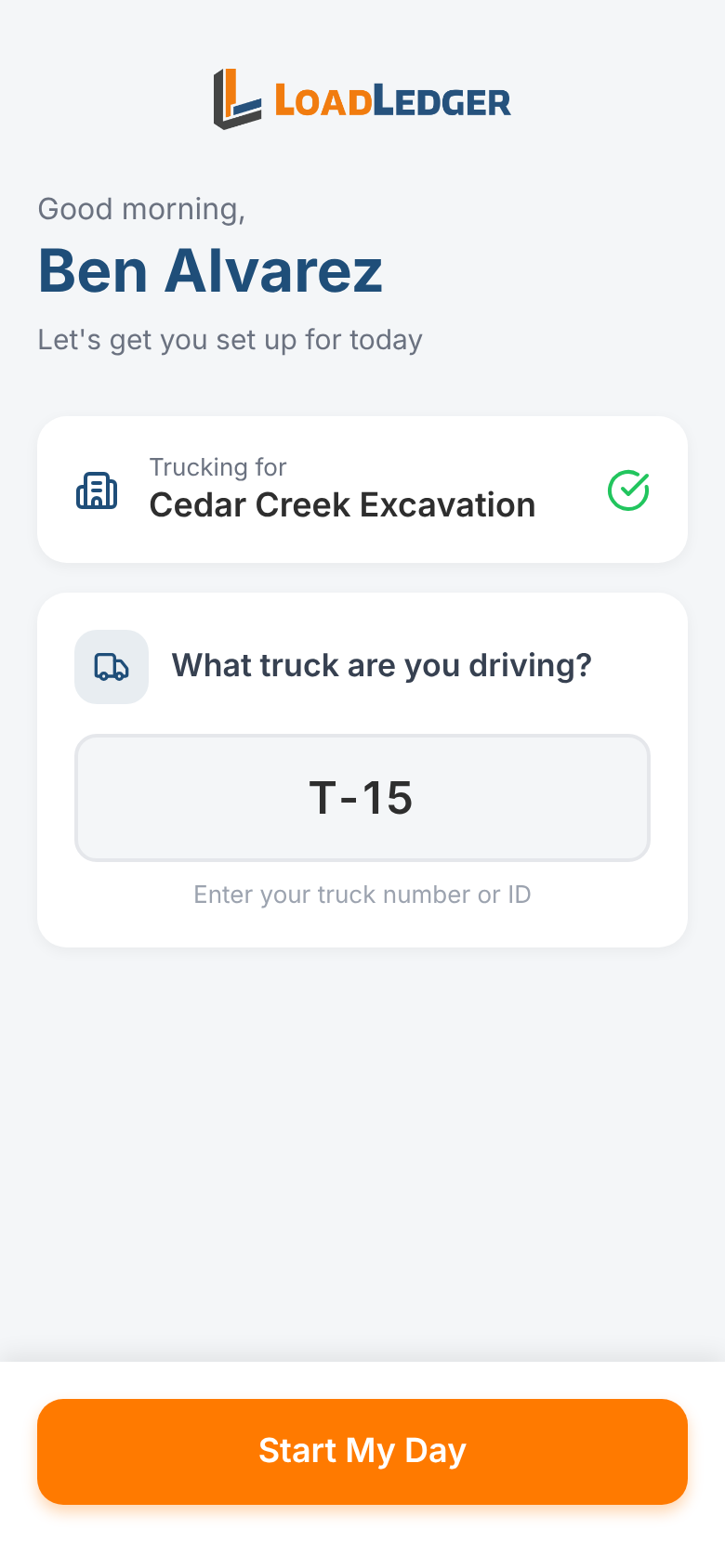
Each day the app asks which truck you're driving. Enter your truck number and tap Start My Day.
You'll land on the home screen, which shows your name, truck and who you're hauling for. Tap the pencil next to either one to change it mid-day.
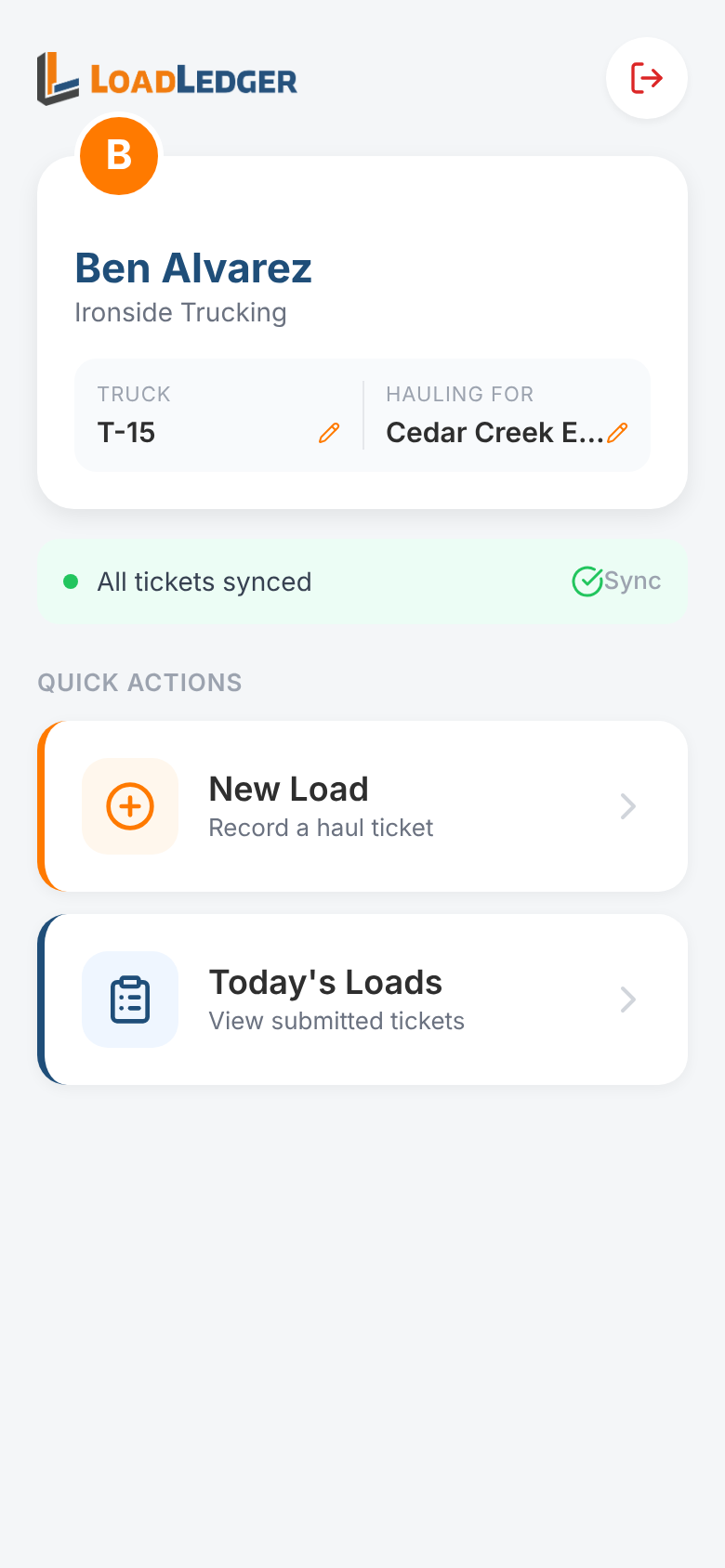
- New Load: log a haul ticket. See Submitting a Haul Ticket
- Today's Loads: everything you've submitted today and its status
The bar under your name shows whether every ticket has uploaded. If you're out of signal it shows how many are waiting, and they upload on their own when you reconnect.
If your PIN doesn't work
- Check the digits with your dispatcher. PINs are 6 digits
- The PIN may have been deactivated or limited to certain jobs, or it may have hit its phone limit. Your office can check all three on its Driver PINs page
- After several wrong tries the app makes you wait before trying again
Signing out
Tap the exit icon at the top right of the home screen. You'll need the PIN again to sign back in. Your office can also sign a phone out remotely from Logged-in Drivers.