LoadLedger has two kinds of people: team members, who sign in to the web dashboard or field app with their email, and drivers, who sign in to the driver app with a company PIN.
Inviting a team member
- Go to Team in the left sidebar
- Click Invite Member
- Enter their email address and pick a role
- Click Send Invite. They get an email with a link to set up their account
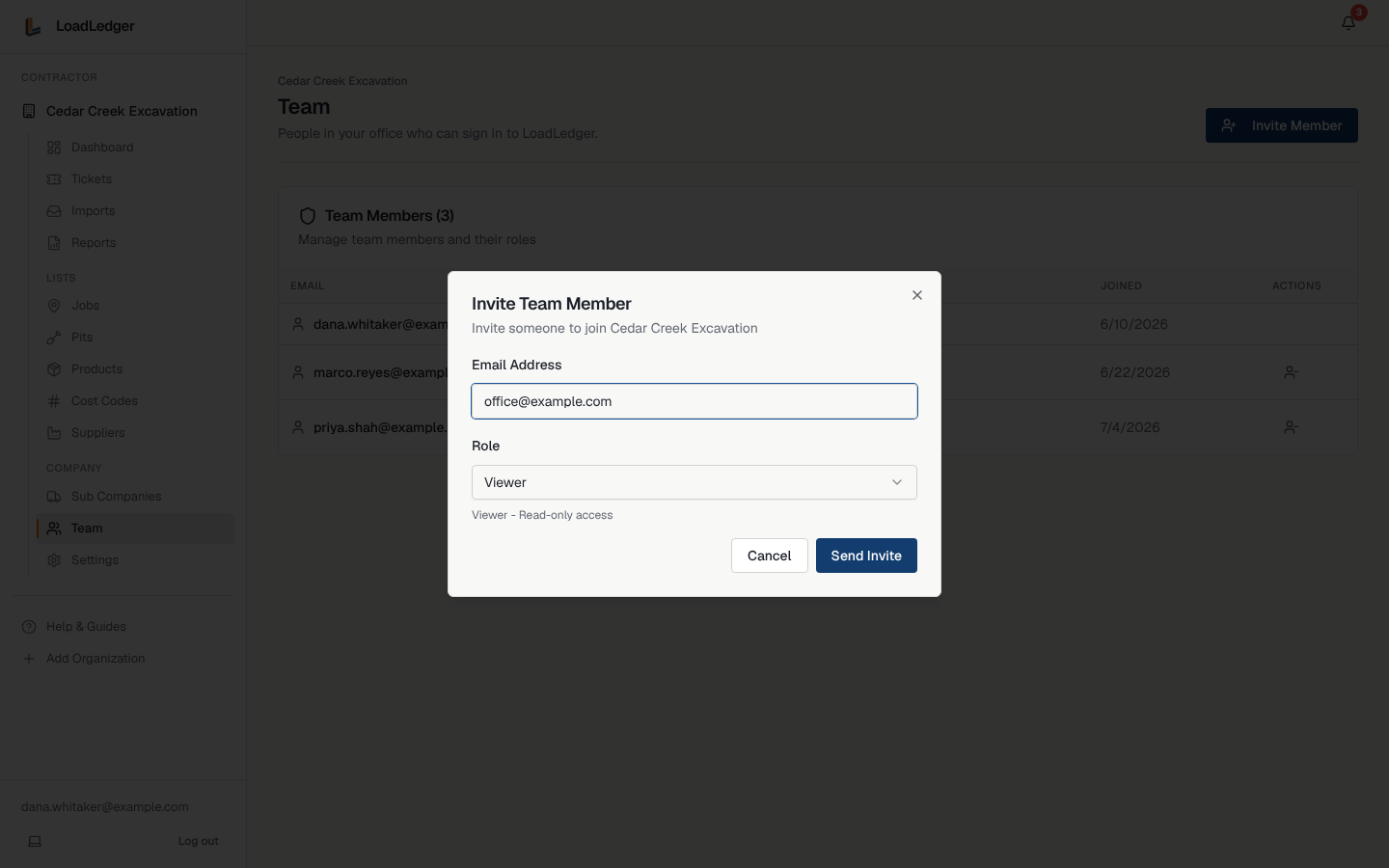
Until they accept, they show as Invite pending on the Team page, where you can resend the invite or remove it.
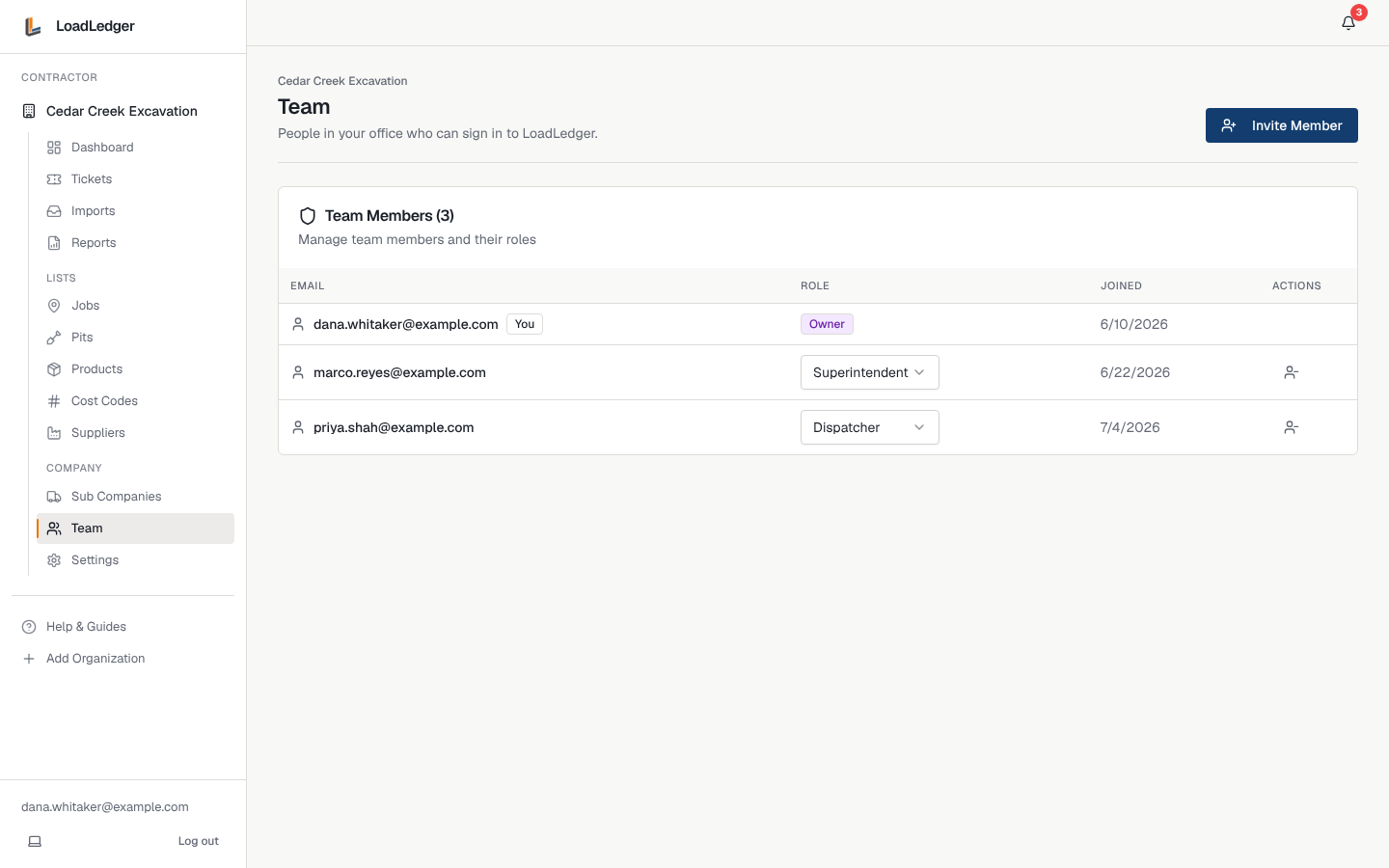
Roles
- Owner: everything, including billing and transferring ownership
- Admin: full access except ownership transfer
- Dispatcher: manage jobs, pits, products and tickets
- Superintendent: assign cost codes and approve loads, mainly from the field app
- Driver Manager: view tickets and manage drivers
- Viewer: read-only access
You can change someone's role any time from the dropdown on the Team page.
Adding drivers
Drivers don't need an email or a password. They sign in with a company PIN and their name, and each phone that signs in shows up as a logged-in driver.
Driver PINs belong to the trucking company, not the contractor. If you're a trucking company:
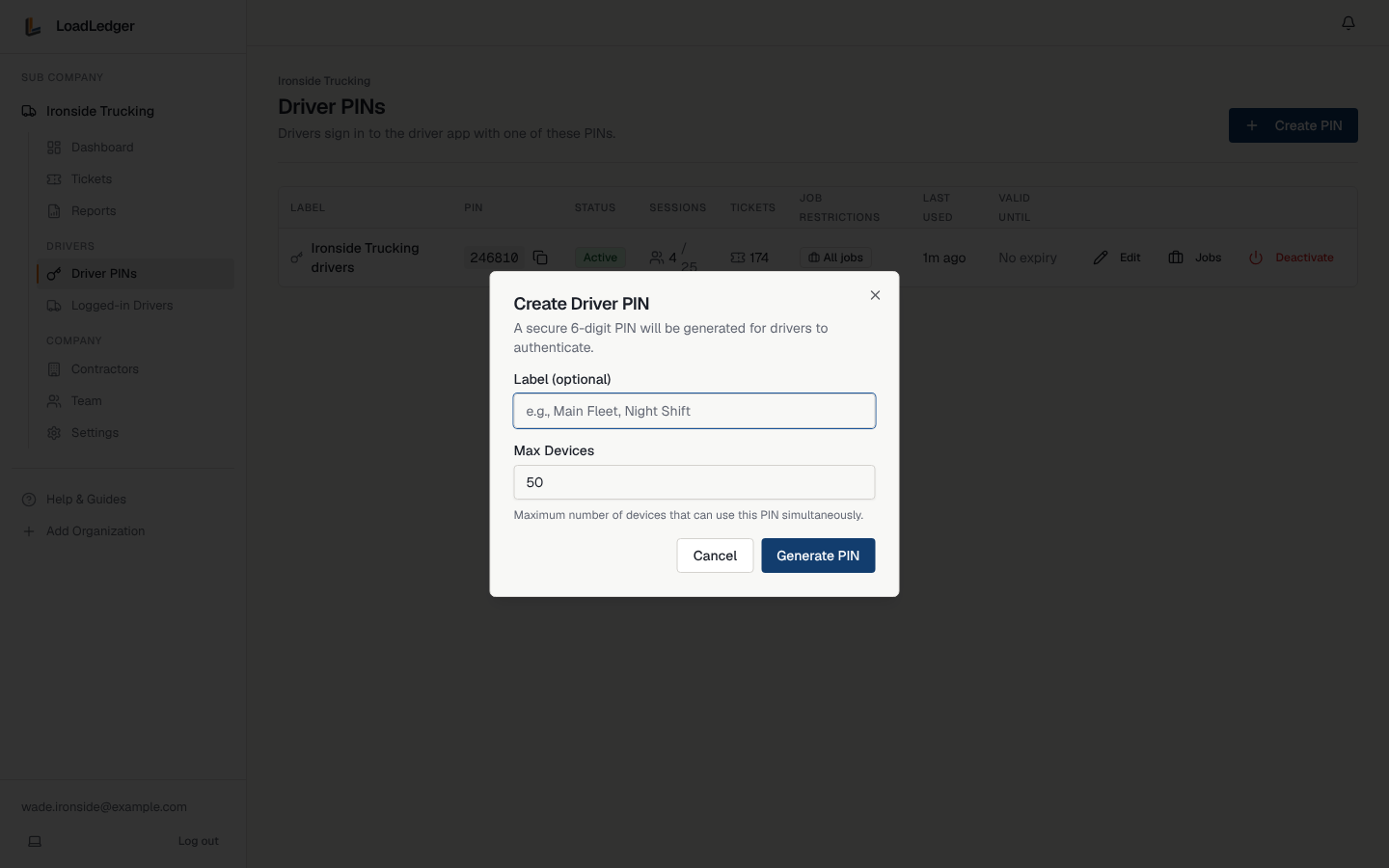
- Go to Driver PINs in the left sidebar
- Click Create PIN, give it a label (for example Main Fleet or Night Shift) and the most phones that can use it
- A 6-digit PIN is generated. Give it to your drivers along with the driver sign-in steps
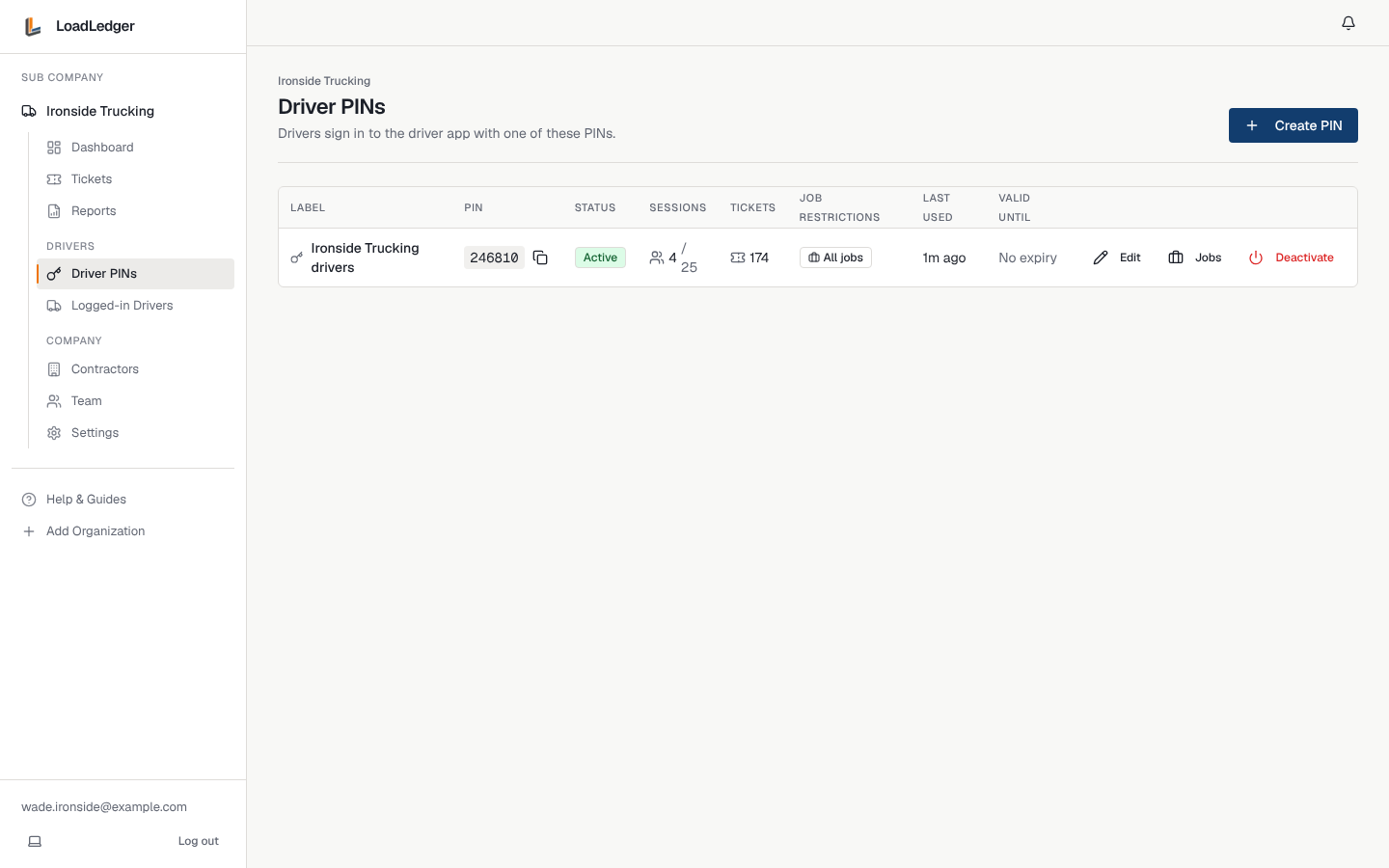
From the same page you can limit a PIN to certain jobs, edit it, or deactivate it. Logged-in Drivers lists every phone signed in right now, with its truck, and lets you sign one out.
If you're a contractor whose trucks are run by a trucking company on LoadLedger, they handle their own PINs. See Working with Subcontractors.