Log each load right after you load out, while the scale ticket is in your hand. It takes about a minute.
Step by step
Step 1. On the home screen, tap New Load. The date, time, your name and the contractor are filled in for you
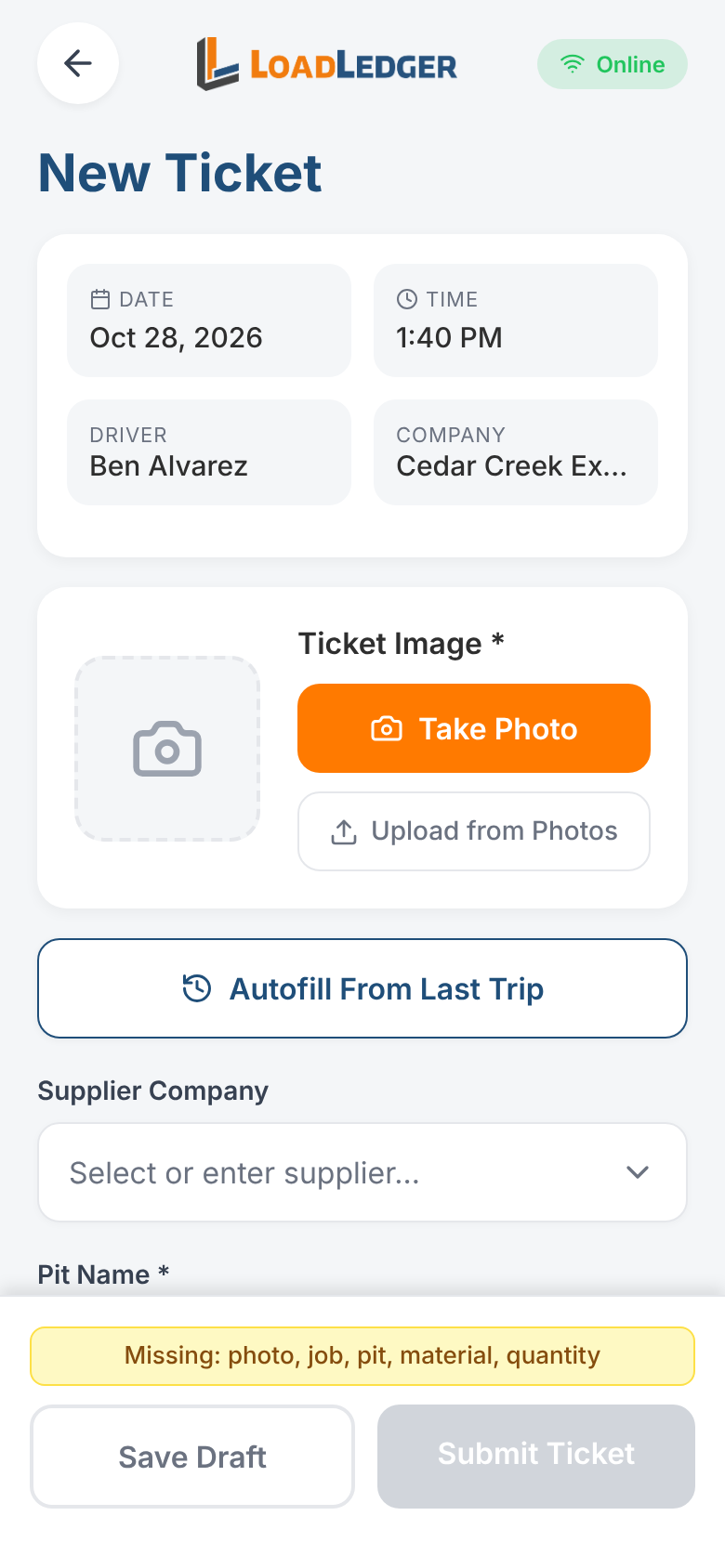
Step 2. Add the ticket photo. Tap Take Photo to photograph the pit's scale ticket, or Upload from Photos if you already took one. You can add more than one photo
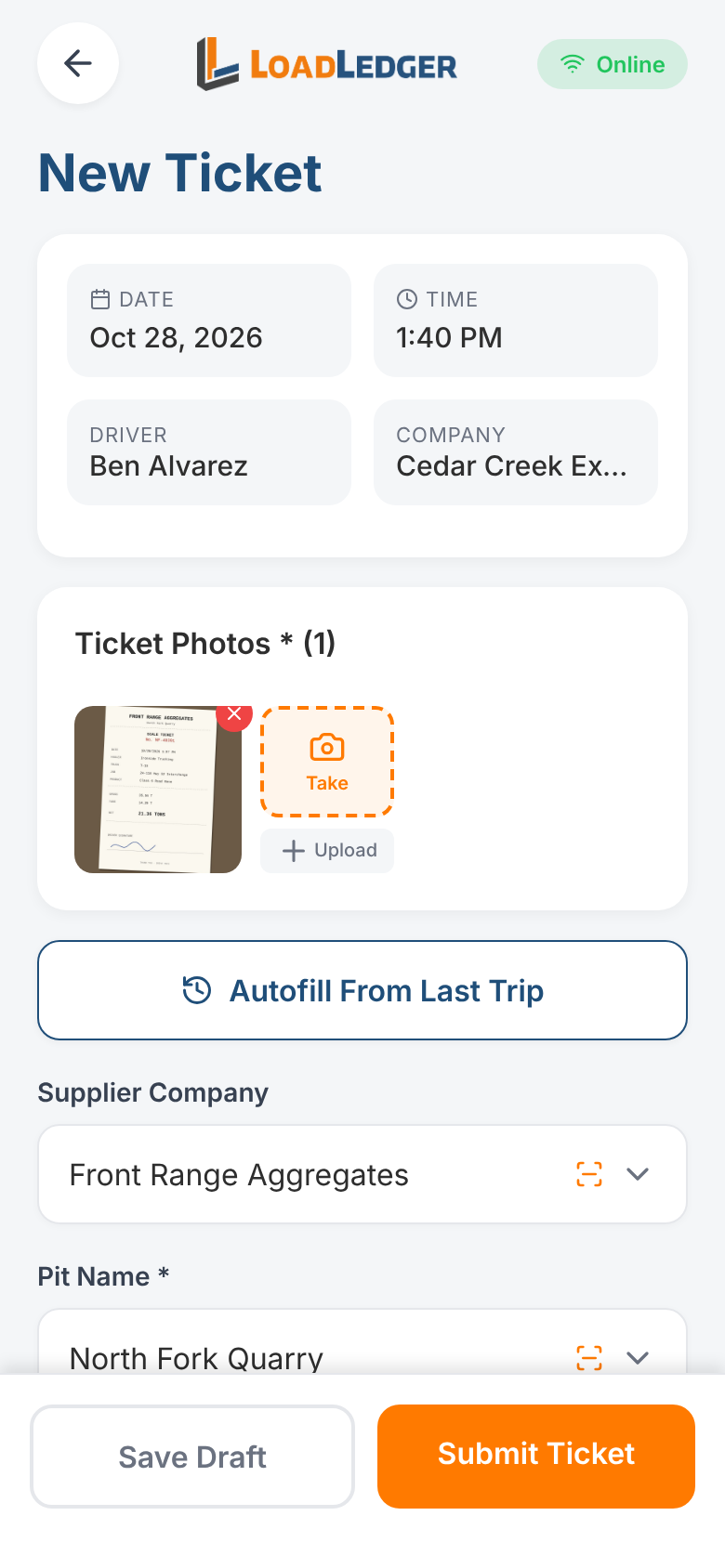
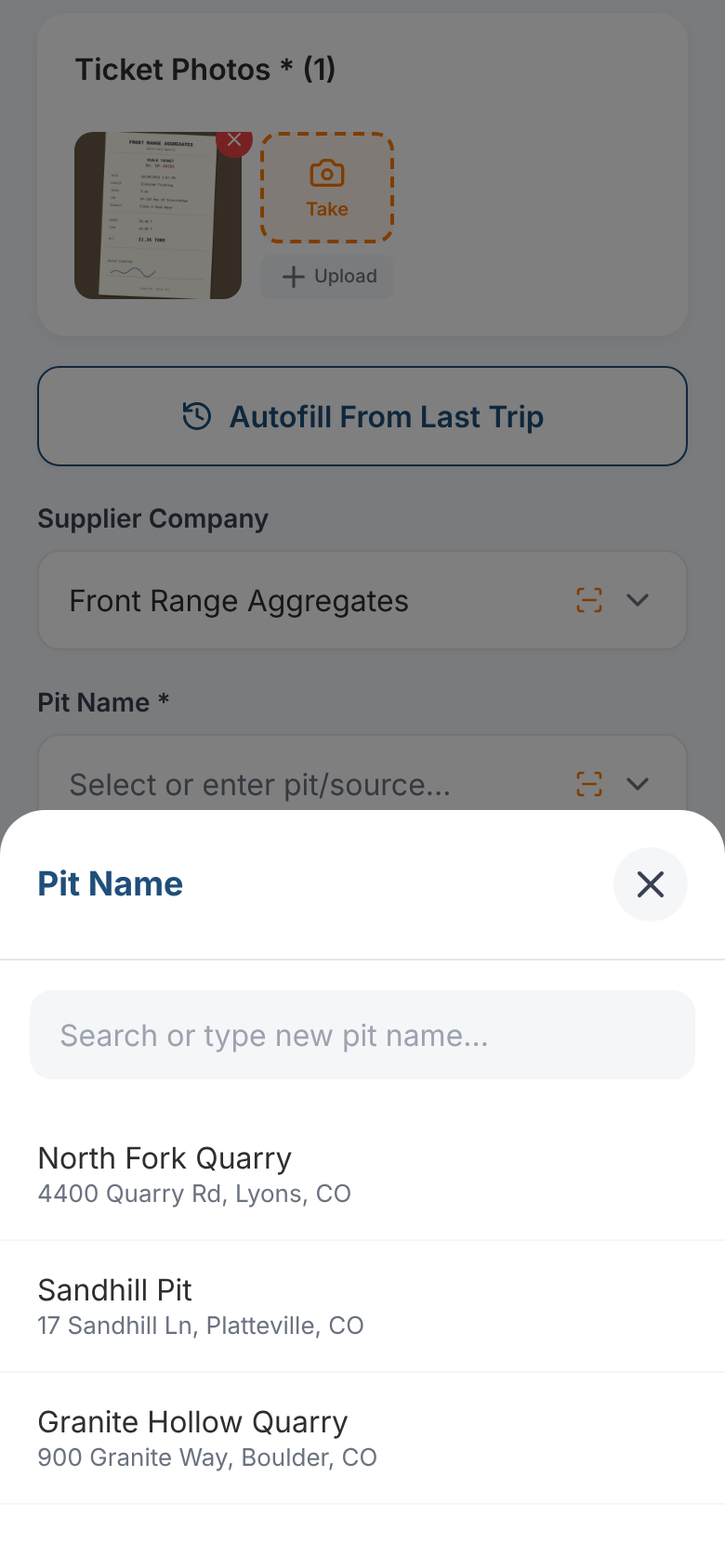
Step 3. Pick the supplier, pit, material and job. Tap each field and choose from the list, or start typing to search. If it isn't listed, type the name and use it
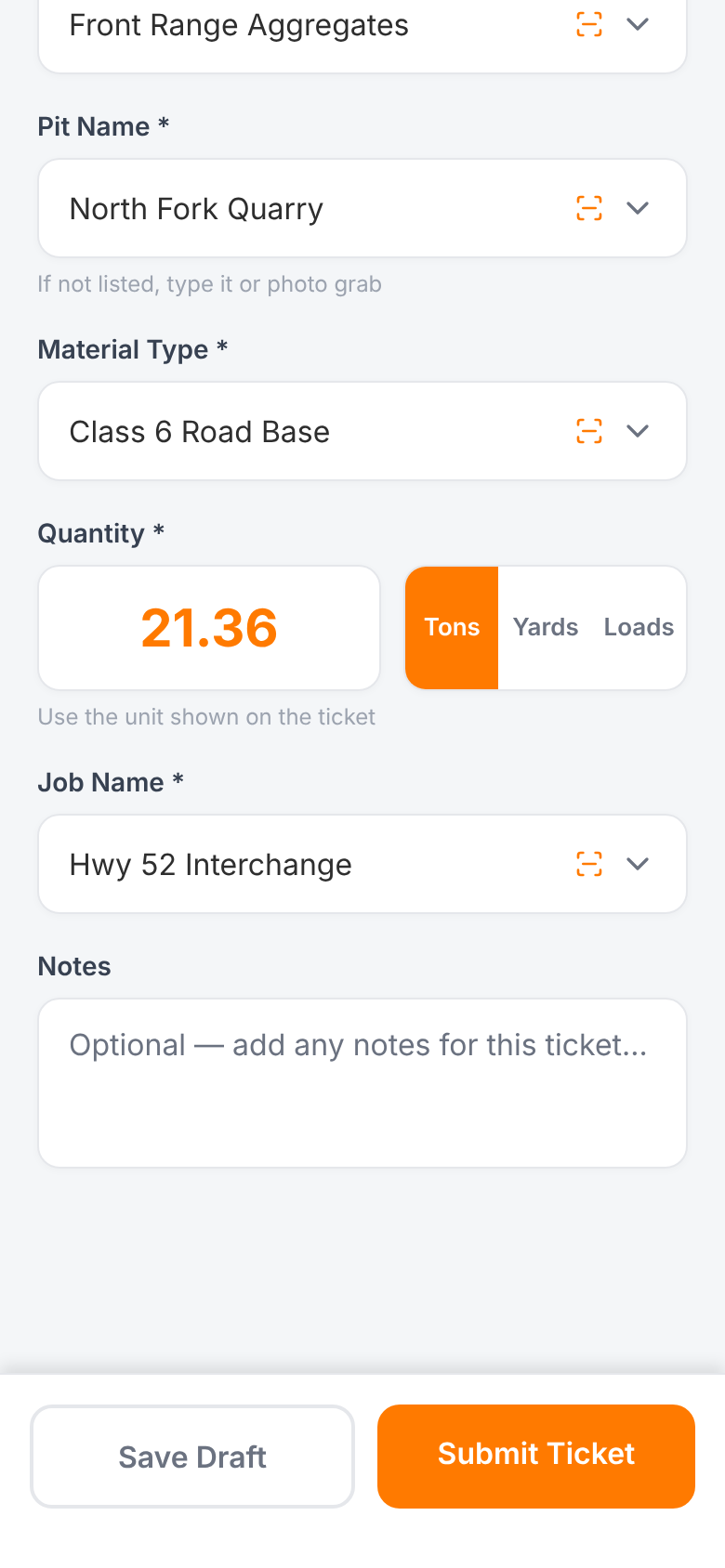
Step 4. Enter the quantity and choose Tons, Yards or Loads. Use the unit printed on the ticket
Step 5. Add a note if the office should know something (a long wait at the scale, where you dumped)
Step 6. Tap Submit Ticket
The bar at the bottom lists anything still missing, so you can't send a ticket without its photo, pit, material, job and quantity.
Shortcuts
- Autofill From Last Trip copies the supplier, pit, material and job from your last load. On a day of back-and-forth runs, you only change the quantity
- The scan icon in a field reads that value off your ticket photo
- Save Draft keeps a half-finished ticket for later
No signal?
Submit as usual. The ticket is saved on your phone and uploads by itself when you're back in coverage. The home screen shows how many are waiting. Don't delete the app while tickets are waiting to upload.
After you submit
Your ticket shows up on the contractor's dashboard right away as Needs review. Today's Loads lists everything you've sent today with its status and your total.
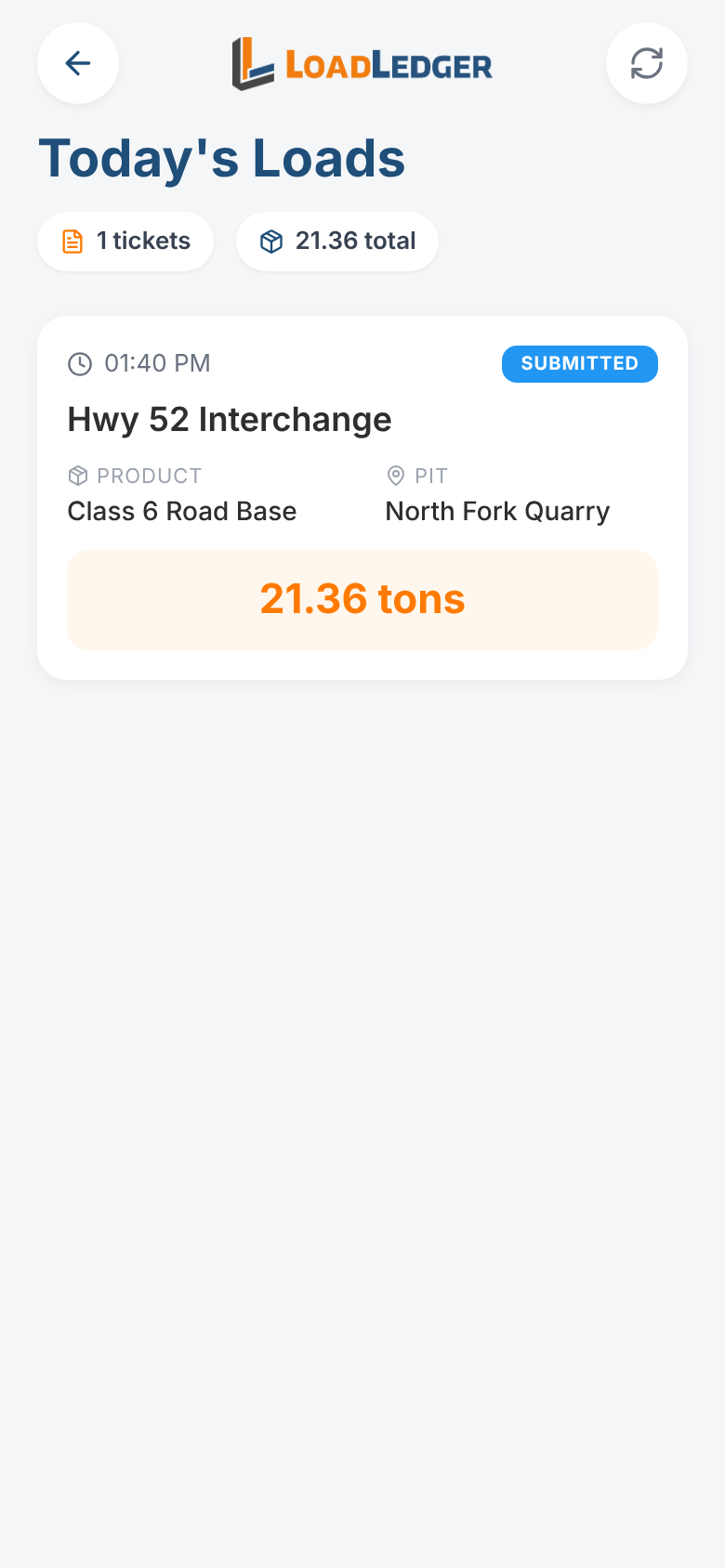
If the office flags a ticket (wrong job, unreadable photo), it shows as flagged in Today's Loads with the reason. Tap it, fix what they asked for, and resubmit.