Reports total up your loads over any date range: by day, job, material, pit, trucking company or driver. Use them to check a pit's invoice, back up your billing, or see how a job is tracking against its target.
Open reports
Go to Reports in the left sidebar. Pick a start and end date at the top right and click Apply. It starts on the current month.
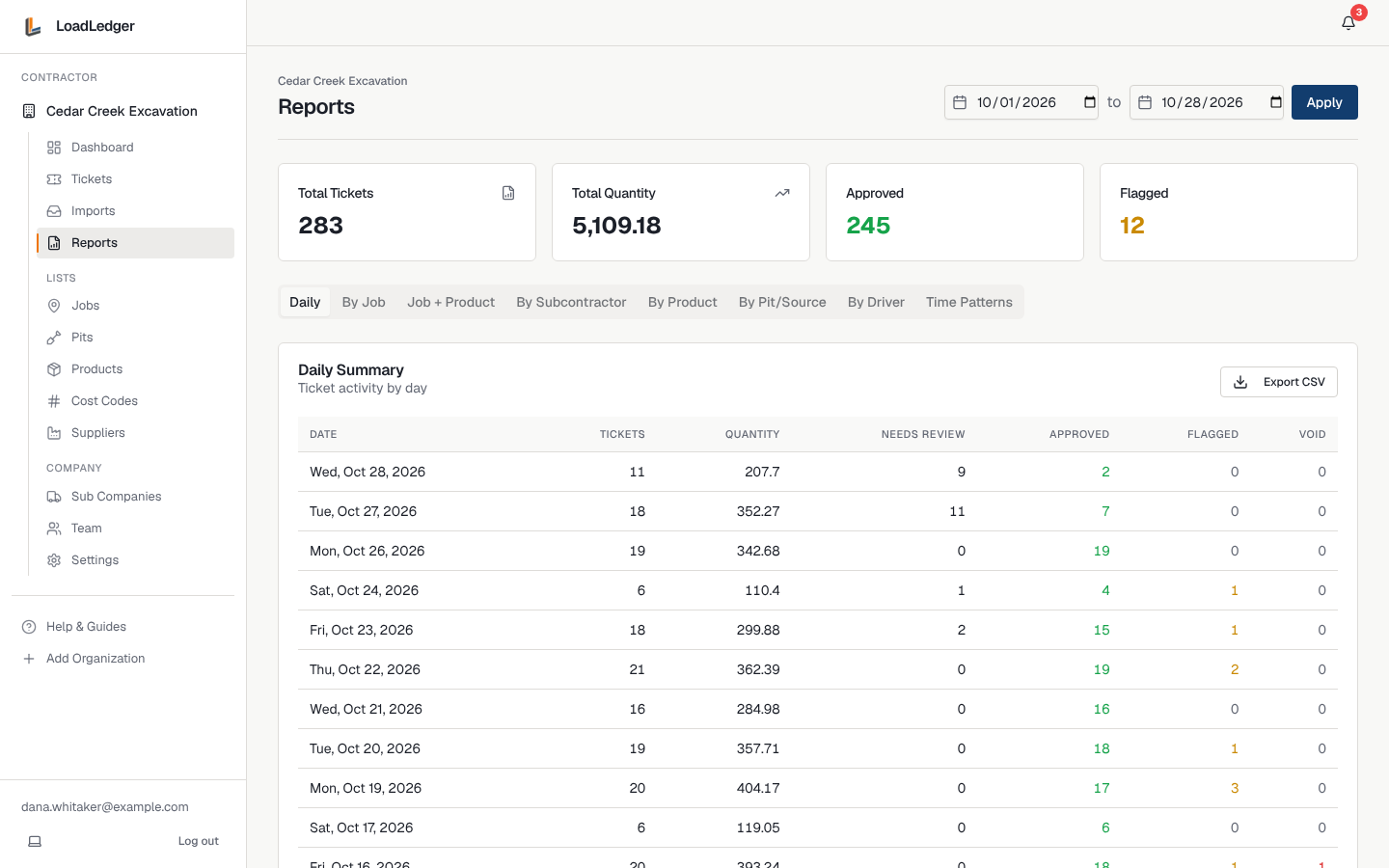
The cards at the top show the total tickets, total quantity, and how many are approved and flagged in that range.
Report views
Switch views with the tabs under the totals:
- Daily: tickets and quantity per day, split into needs review, approved, flagged and void
- By Job: tickets, total quantity and approved quantity per job, and how many trucking companies hauled on it
- Job + Product: each job broken down by material
- By Subcontractor: what each trucking company hauled for you
- By Product: totals per material
- By Pit/Source: totals per pit, handy for checking a pit's invoice
- By Driver: each driver's loads, quantity and how many jobs they worked
- Time Patterns: which hours of the day see the most loads
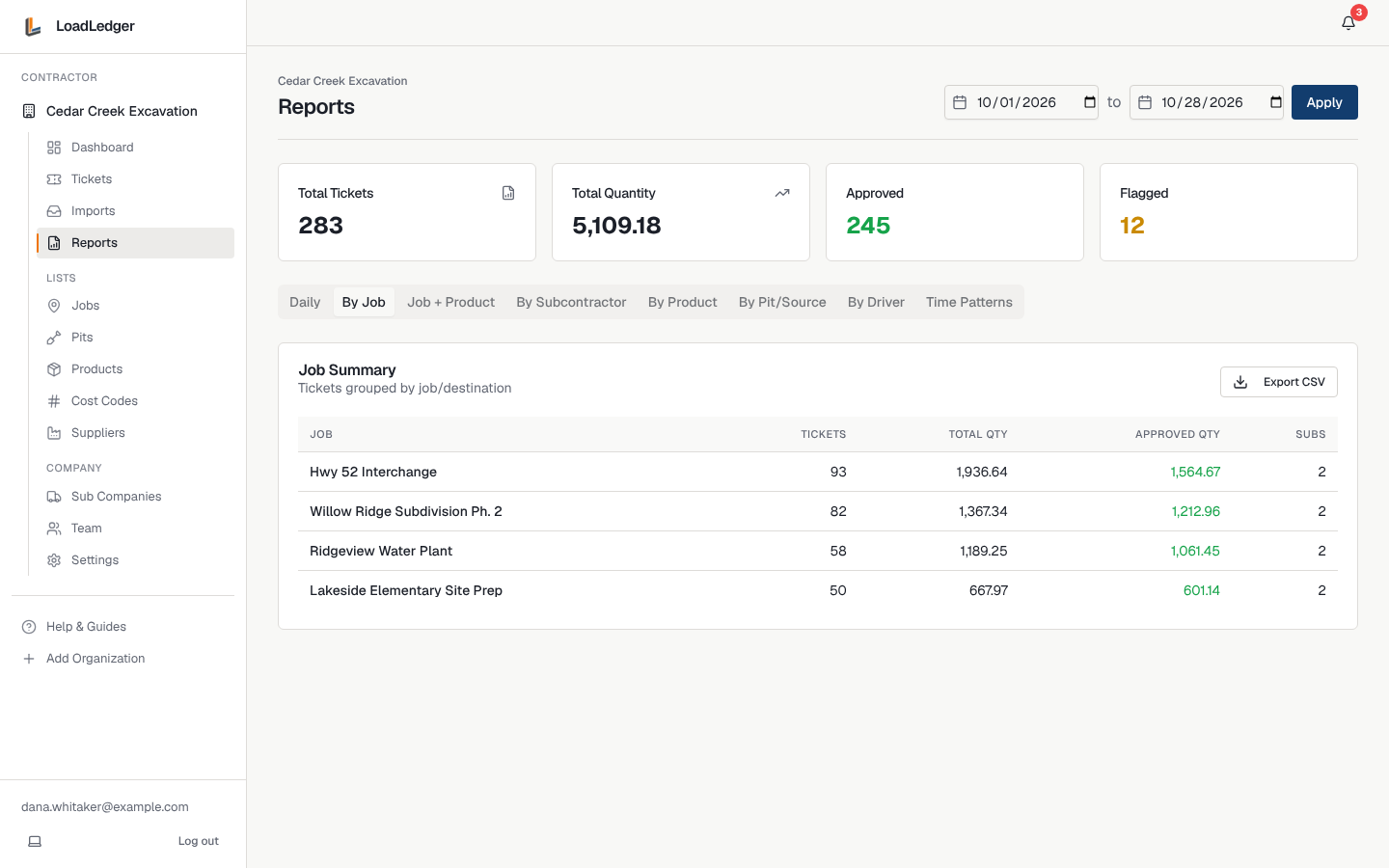
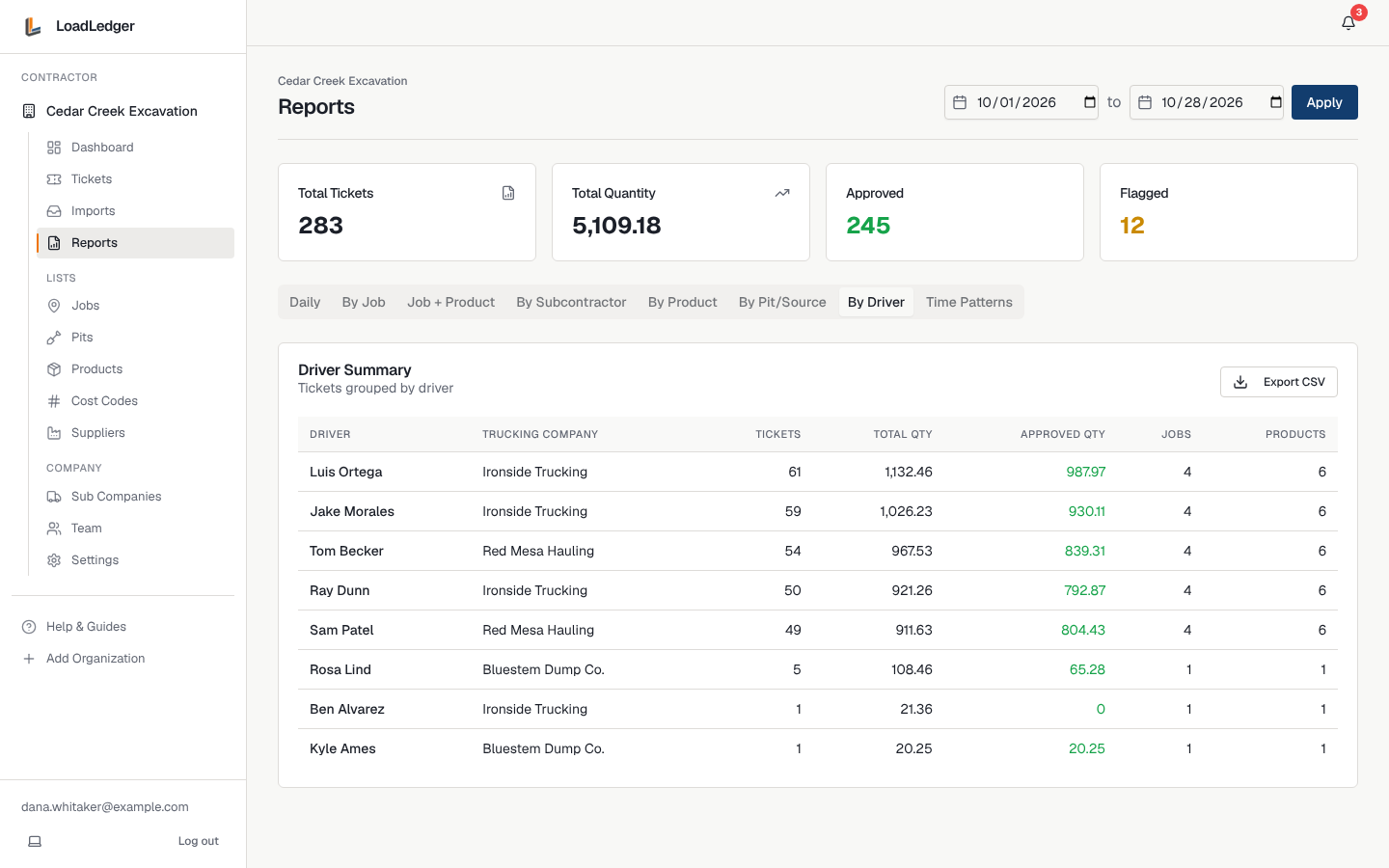
Export to a spreadsheet
Every view has an Export CSV button that downloads exactly what you're looking at, ready for Excel or your accounting system. Ticket-level detail is on the Tickets page: filter it, then click Export CSV there.
Before you bill or pay a pit invoice
- Set the date range to the billing period
- Check Daily for any needs review or flagged tickets in the range and clear them first
- Use By Job (or Job + Product) for what to bill the owner, and By Pit/Source or By Subcontractor to check what you're being charged
Only approved quantity should go on a bill. The Approved Qty column shows it.