Every load a driver submits lands on your dashboard as Needs review. Check it, give it a cost code, and approve it, or flag it back with a note if something's off.
Find what needs review
The Dashboard shows how many tickets are waiting. Click Review now, or go to Tickets in the left sidebar.
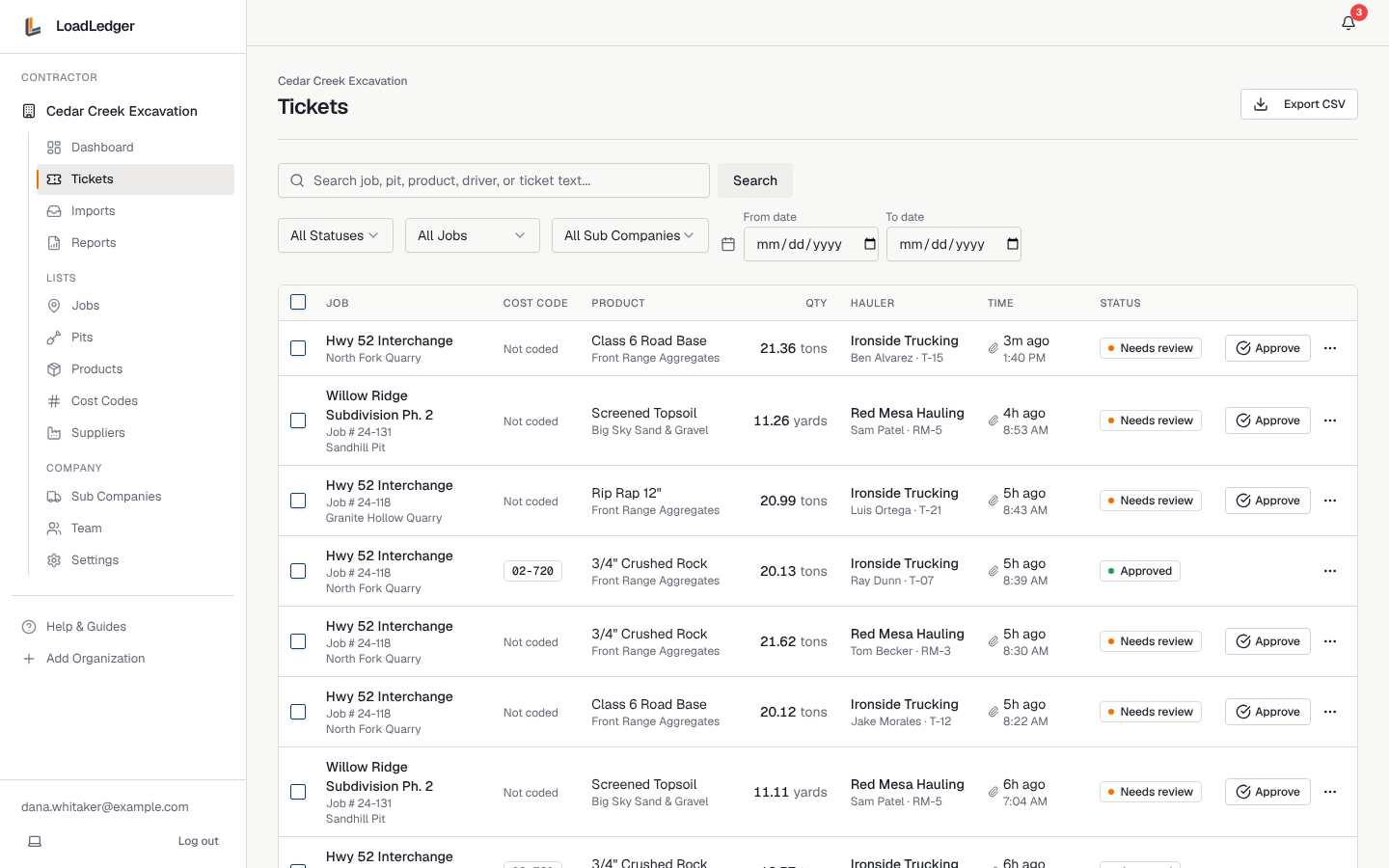
Each row shows the job and pit, the cost code, the material and supplier, the quantity, the trucking company, driver and truck, and when it was hauled. The paperclip means a photo is attached. Narrow the list with the search box (job, pit, product, driver or ticket text), the status, job and trucking company filters, and a date range. New tickets appear without refreshing.
Review a single ticket
Click a ticket to open it.
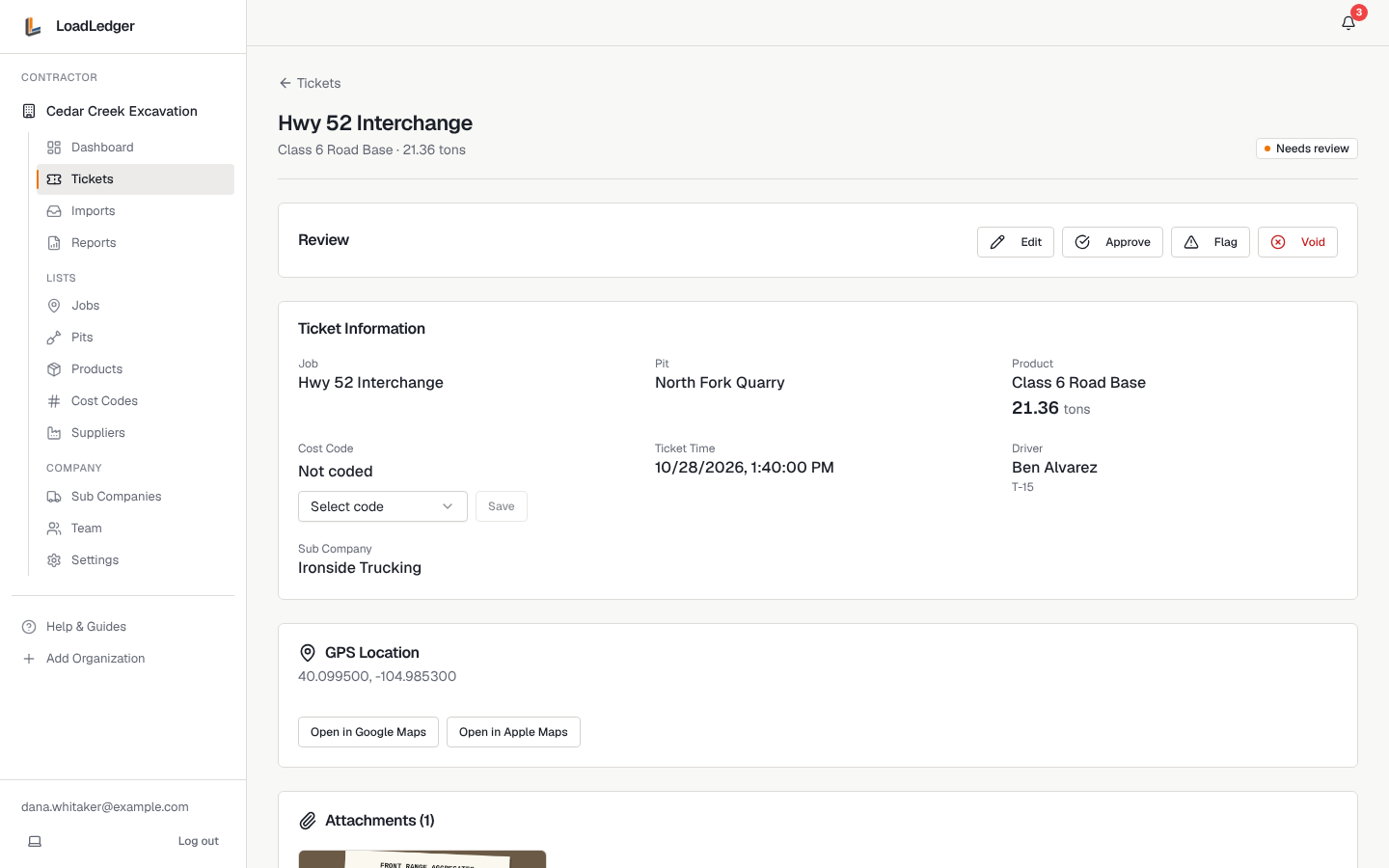
You'll see:
- The job, pit, material, quantity and time, and who hauled it (company, driver and truck)
- The cost code: pick one from Select code and click Save
- The GPS location where it was submitted, with links to open it in Google or Apple Maps
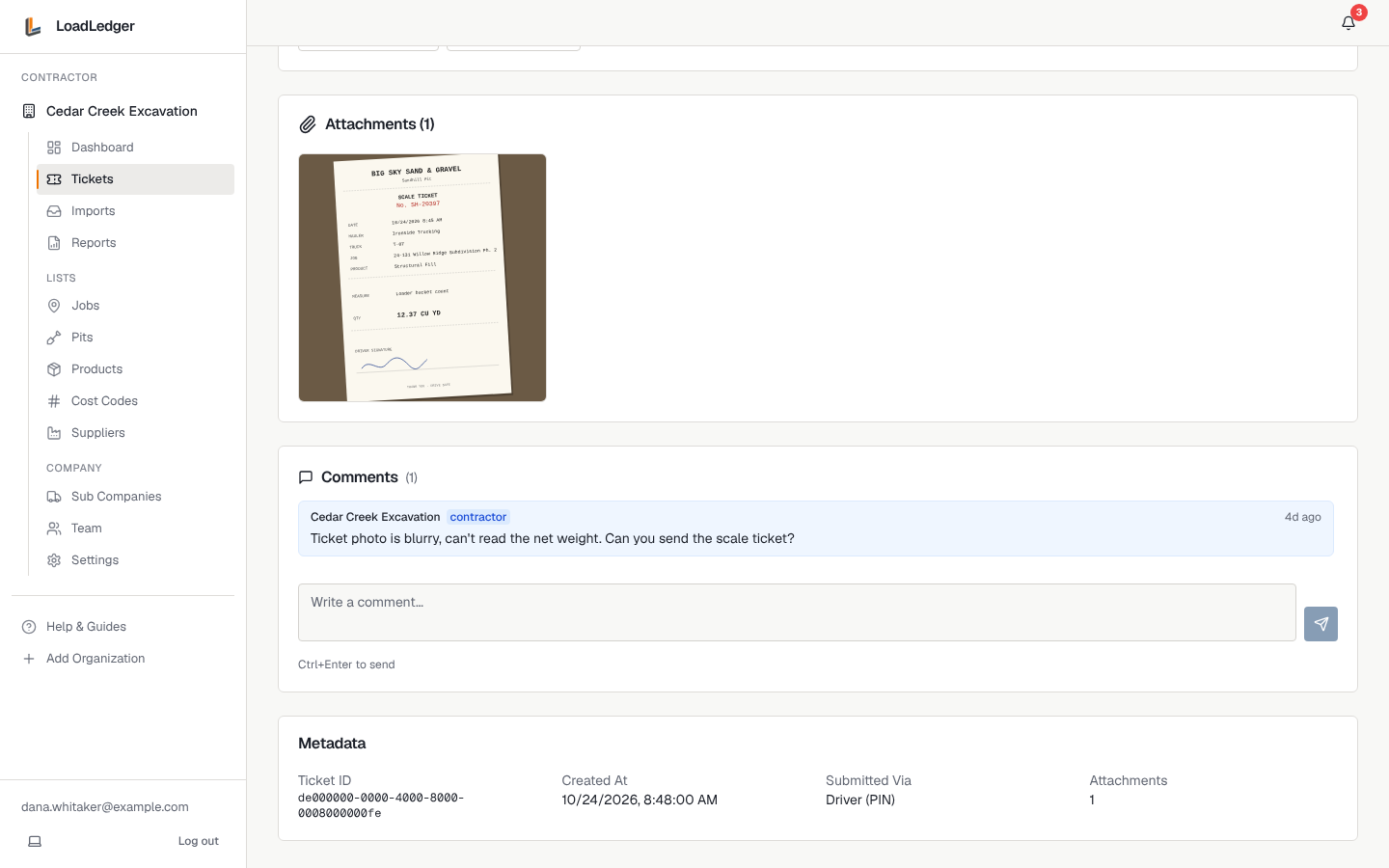
- The ticket photos. Click one to see it full size and check the number, weight and material against what the driver entered
- Comments between your office and the trucking company
Then use the buttons at the top:
- Approve when everything matches
- Edit to fix a detail (for example the wrong material) before approving
- Flag to send it back with a reason
- Void for a duplicate or a load that never happened. Voided tickets don't count in reports
Flag a ticket
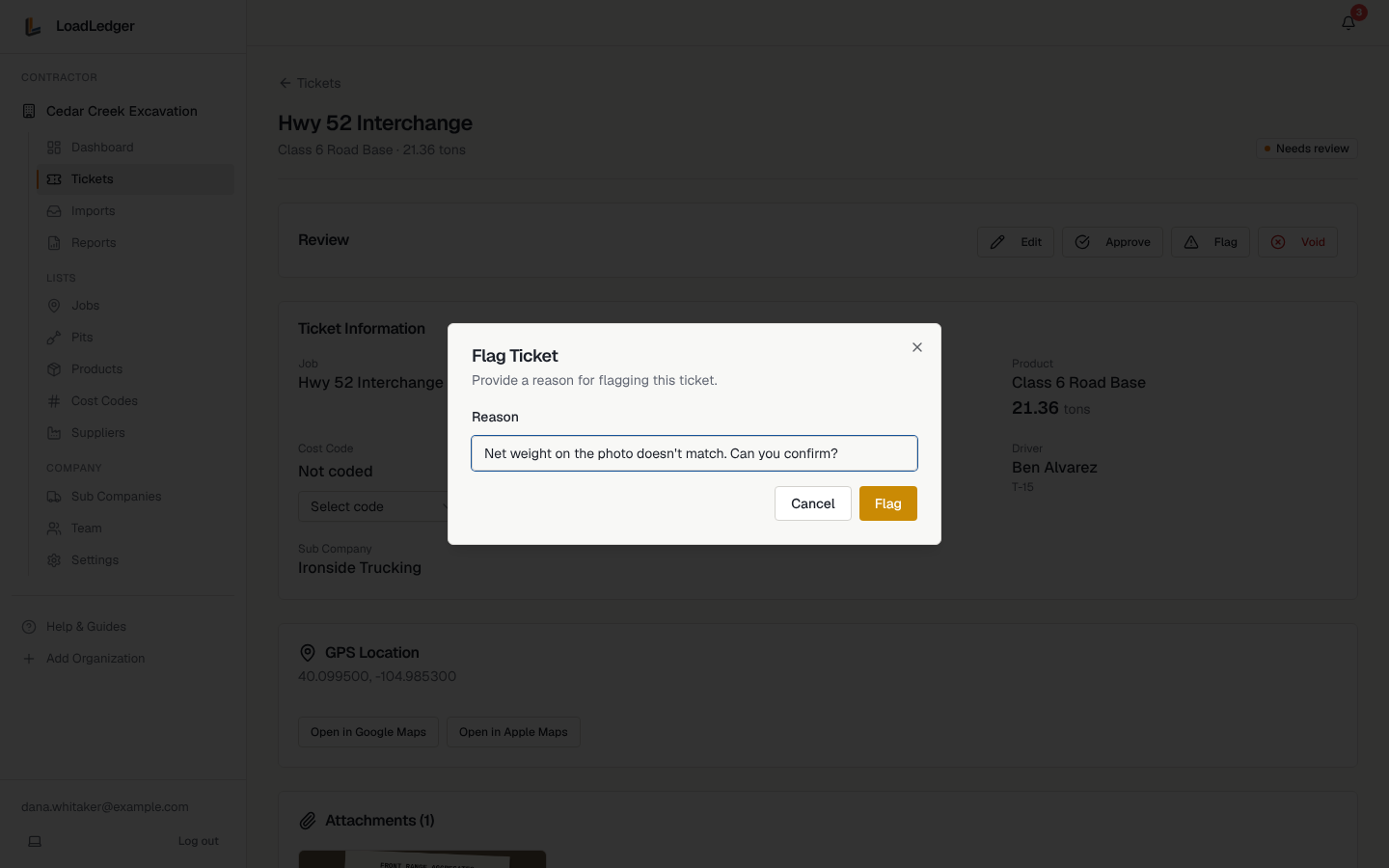
Click Flag, say what's wrong, and click Flag again. The trucking company and driver see the reason, and the driver can correct and resubmit it from the app.
Use Comments at the bottom of the ticket for back-and-forth. The trucking company sees and can reply to the same thread.
Approve several at once
Tick the boxes next to the tickets (or the box in the header for the whole page). A bar appears with Approve All, Flag All and Void All.
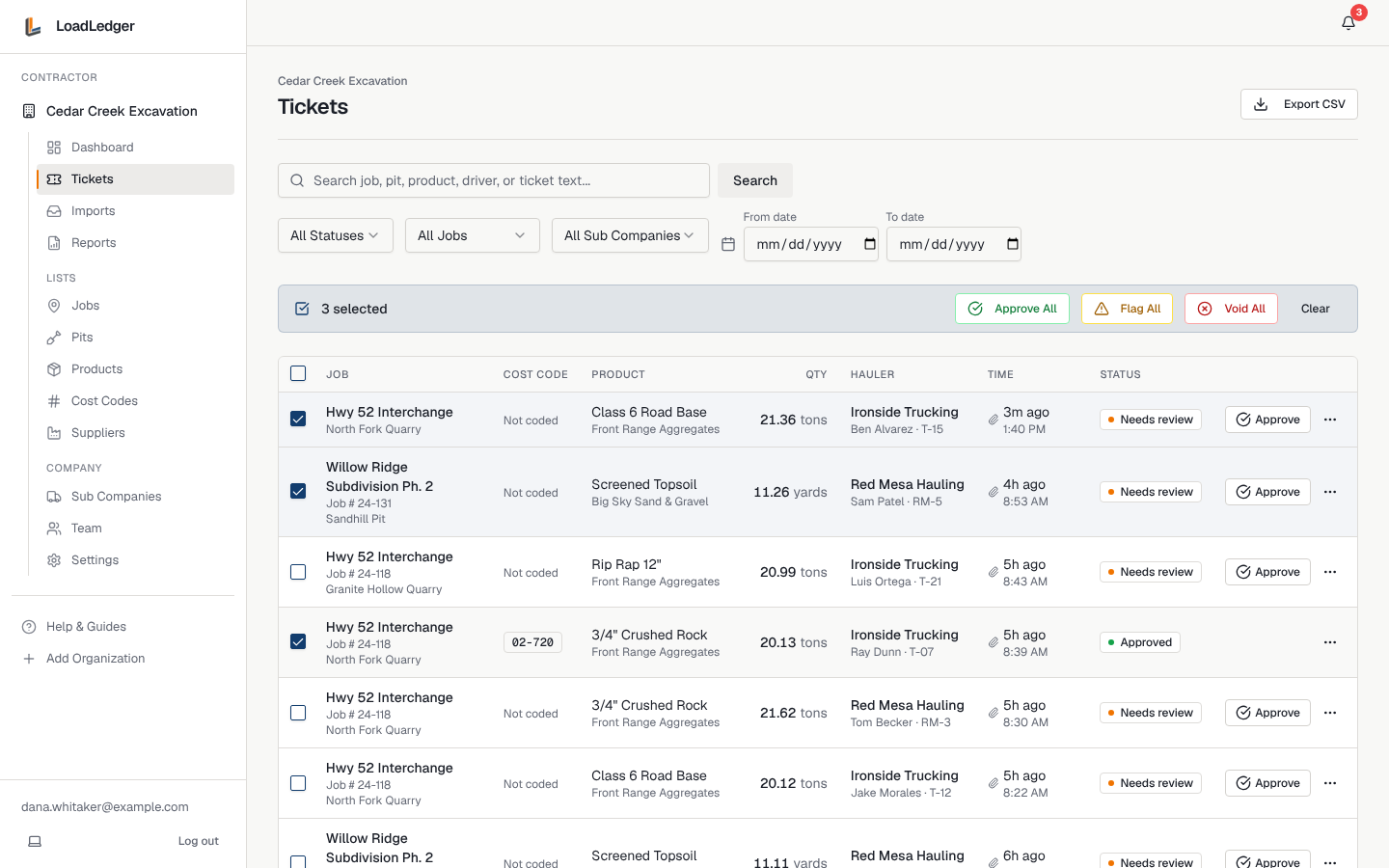
You can also click Approve right on a row without opening the ticket.
Tips
- Code and approve daily. A day's tickets take a few minutes; a month's take an afternoon
- Superintendents can code and approve from the job site with the field app
- Use Export CSV on the Tickets page to download the tickets you've filtered