Most contractors hire trucking companies (sub haulers) to move material. Link them to your account and their drivers' tickets come straight to you. Their LoadLedger account is free.
How connecting works
Each trucking company has its own LoadLedger account and manages its own drivers and PINs. Once it's connected to you, its drivers can choose your company in the driver app and submit tickets on your jobs. You review and approve those tickets like any other.
Go to Sub Companies in the left sidebar. The Add a hauler box at the top gives you three ways to connect.
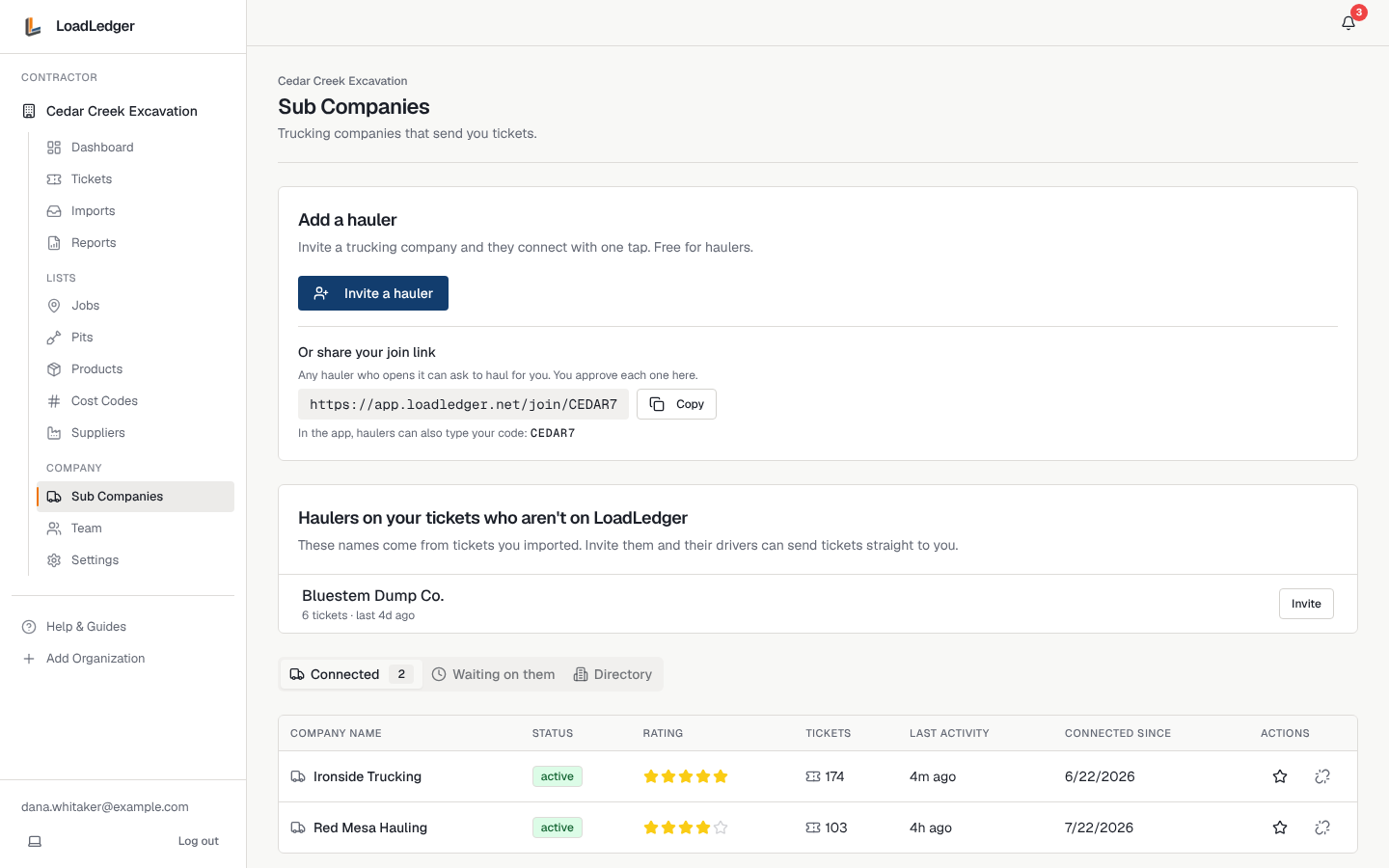
Option 1: invite a hauler
- Click Invite a hauler
- Enter the company name (optional) and their email, then click Email invite
- No email address? Click No email? Get a link and text them the link instead. Each link works once, for one company, and expires in 14 days
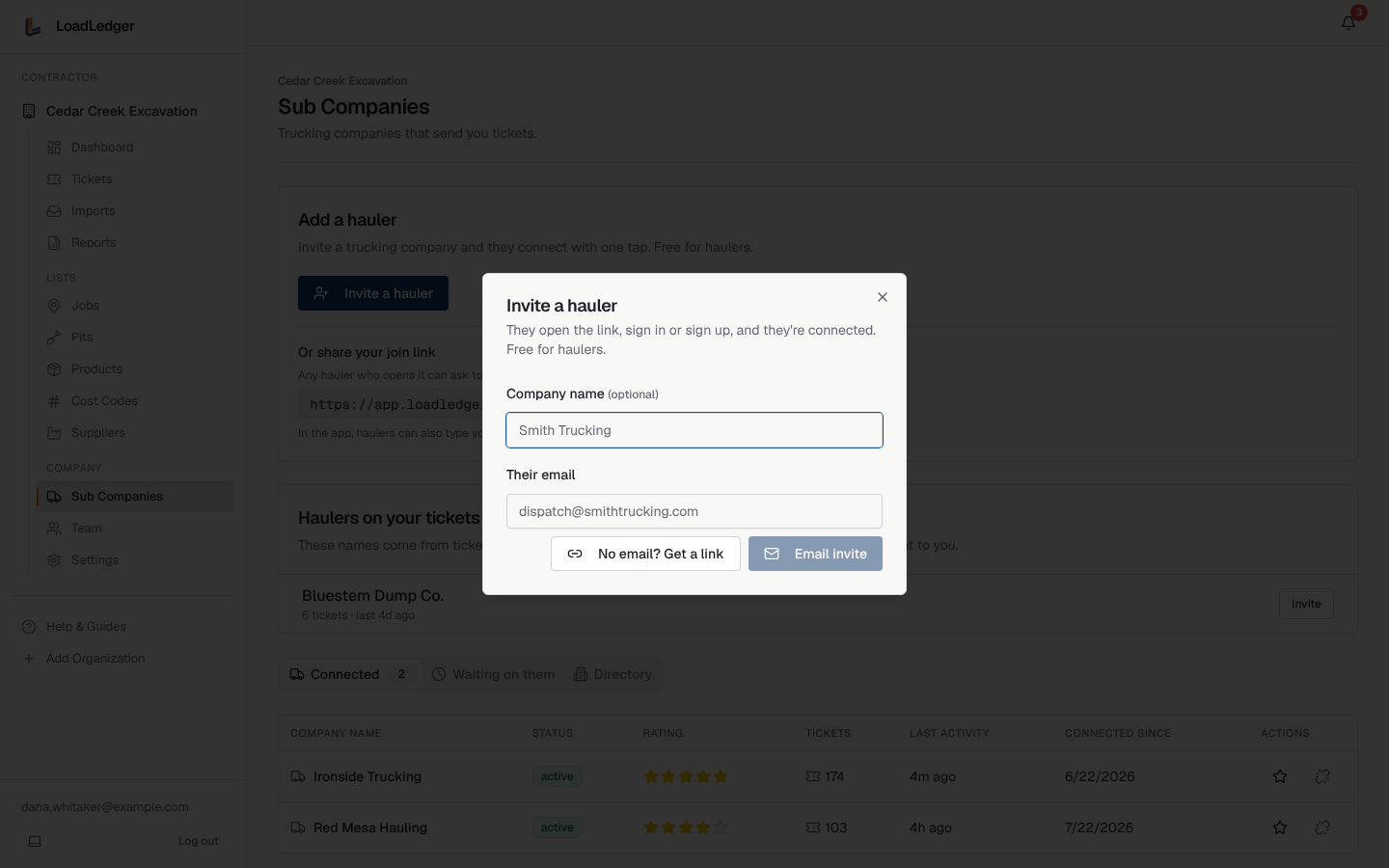
They open the invite, sign in or sign up (free), and they're connected. No approval needed on your side.
Option 2: share your join link
Under Or share your join link is a link like app.loadledger.net/join/CEDAR7. Put it in an email signature or text it to every hauler you use. Anyone who opens it can ask to haul for you, and you approve each request at the top of this page.
Option 3: give them your contractor code
Haulers already on LoadLedger can type your contractor code (also shown on the Dashboard) under Contractors in their account. That sends you a request to approve. If you invited them and they asked too, you're connected without either side approving.
Haulers who aren't on LoadLedger yet
If you import pit invoices (see below), the trucking companies named on those loads are listed under Haulers on your tickets who aren't on LoadLedger. Click Invite next to one to bring them on, so their drivers can send tickets straight to you.
Managing your haulers
- Connected: every trucking company that can send you tickets, with its status, ticket count, last activity and when you connected
- Waiting on them: invites you've sent that they haven't accepted yet
- Directory: trucking companies that have published a profile on LoadLedger. Invite one from there
On the Connected list you can:
- Rate a hauler (one to five stars) to keep track of who you like working with
- Unlink a hauler who no longer works for you. Their past tickets stay in your reports
Seeing their tickets and totals
Sub tickets appear in your Tickets list with the company, driver and truck on every row. Filter by trucking company with the All Sub Companies filter, and use Reports → By Subcontractor to total what each one hauled in a period.
Loads from trucks that don't use the app
Loads hauled by trucks that don't use the app can still come in through Imports: pit invoices emailed to your Outlook inbox are read automatically and each load on them becomes a ticket for review, tagged with the hauler named on the invoice. Set it up under Settings → Invoice Email Imports.
For the trucking company's side of all this, send them Running a Trucking Company on LoadLedger.