The field app puts the day's loads in your pocket. Superintendents and the field office use it to give each load a cost code and approve it from the job site, while the trucks are still running.
Who can use it
Anyone on your team with the Owner, Admin, Dispatcher or Superintendent role. If you can't sign in, ask your office to check your role on the Team page. See Adding Drivers and Team Members.
Signing in
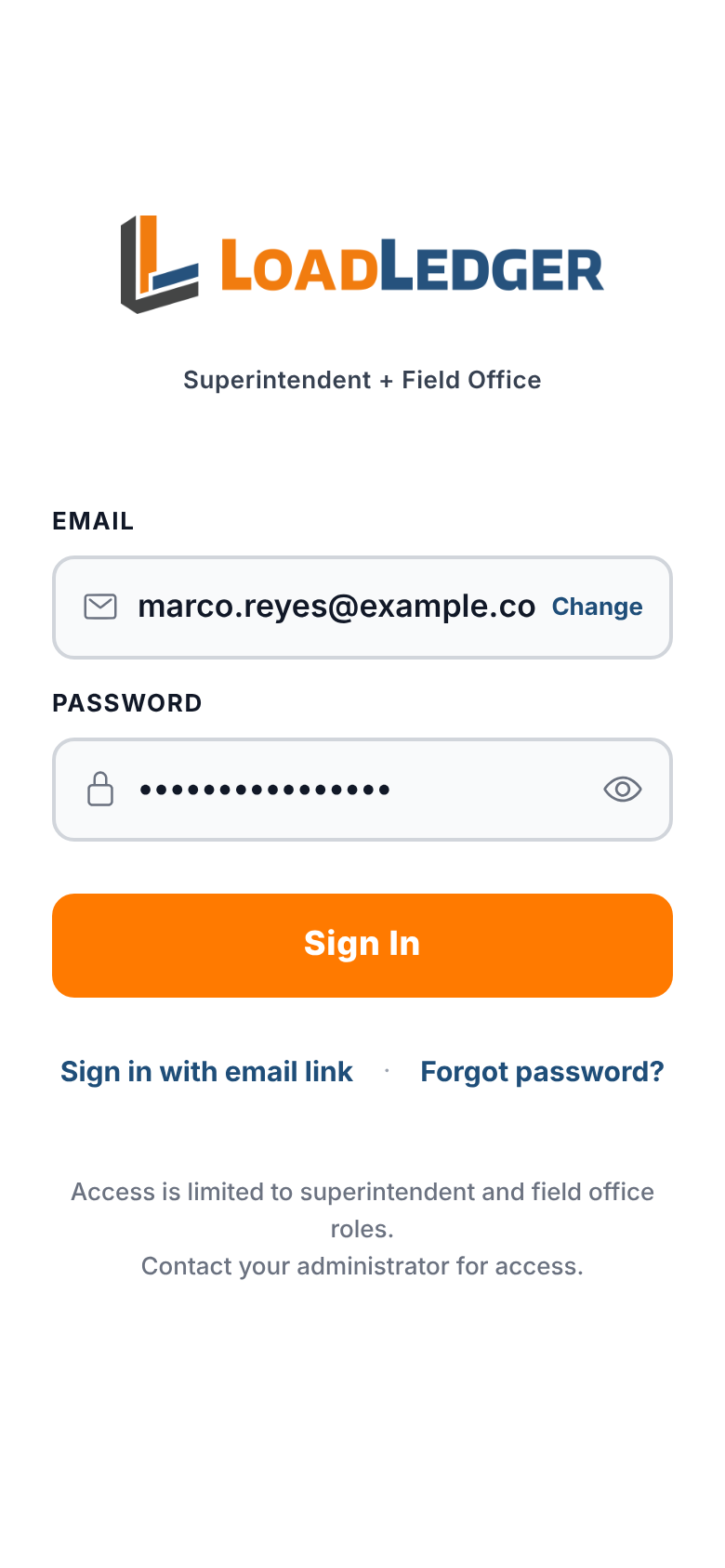
Open LoadLedger Field, enter your work email, tap Continue, then enter your password and tap Sign In. You can also tap Sign in with email link to get a one-tap link by email instead. If your company signs in with Microsoft 365, the app sends you there automatically.
The Queue
The Queue tab lists loads that still need a cost code, newest first. The bar at the top shows how much of the day is coded.
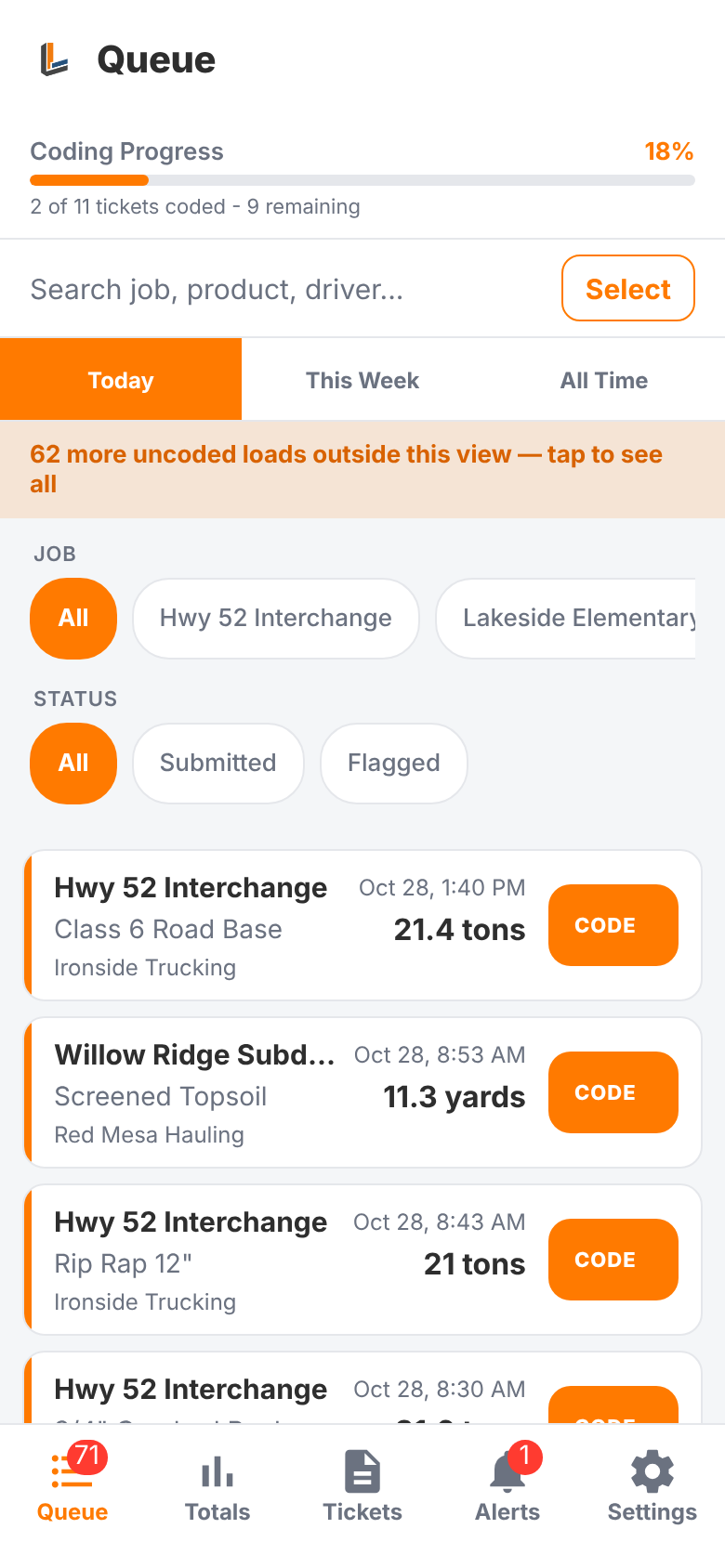
- Switch between Today, This Week and All Time
- Filter by job or by status (submitted or flagged)
- Search by job, product or driver
- The number on the Queue tab is how many loads are uncoded across the company
Coding a load
Tap CODE on a load and pick the cost code. Tap the star next to codes you use a lot to keep them at the top.
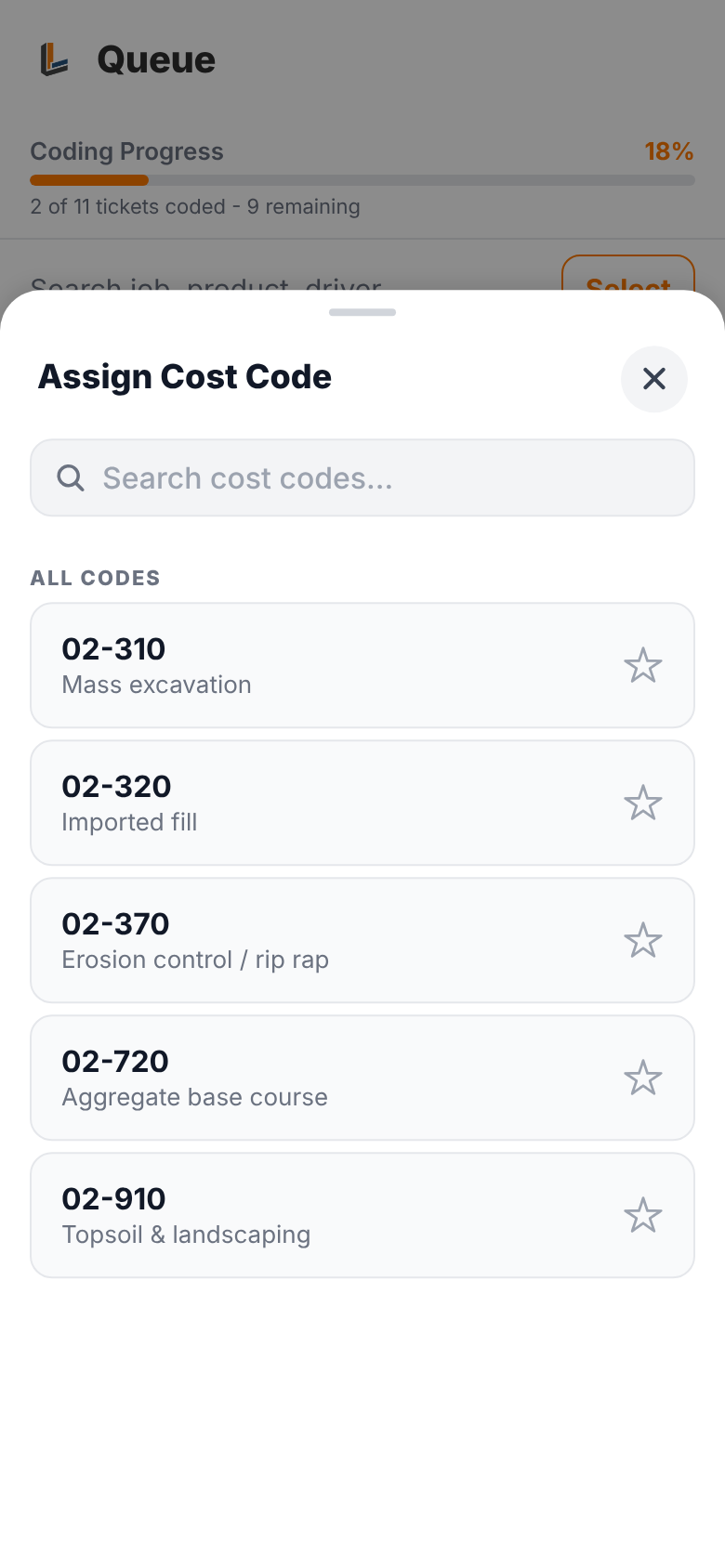
To code many loads at once, tap Select, tick the loads, and tap CODE in the bar that appears. When the day's loads are coded, Approve All Coded approves everything on screen in one go.
Coding works without signal too. The app keeps your changes and sends them when you're back online.
Looking at a single load
Tap a load to see everything about it: job, pit, material, quantity, time, trucking company, the scale ticket photos and any comments.
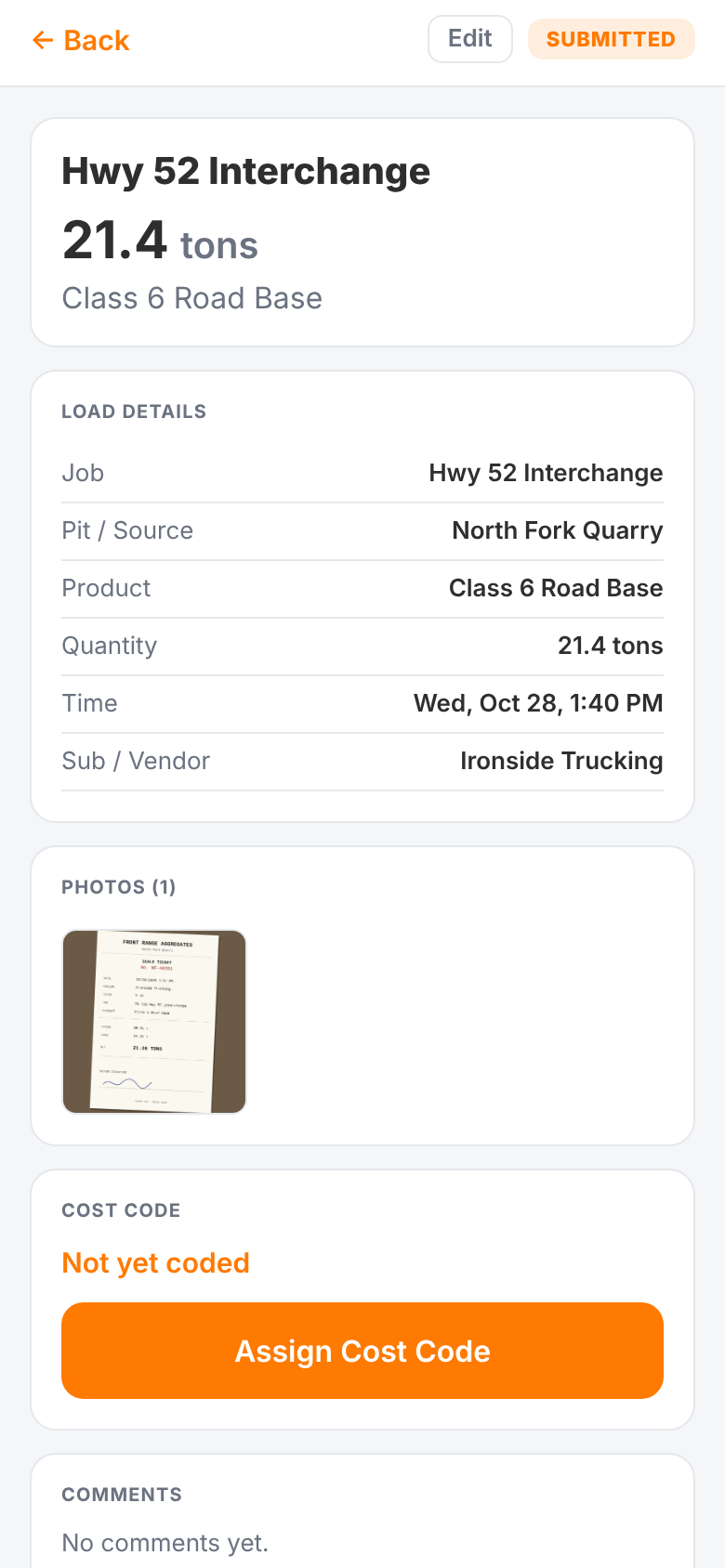
From here you can:
- Assign Cost Code (or change it)
- Approve it. A load needs a cost code before it can be approved
- Edit a detail the driver got wrong
- Add a comment for the office or the trucking company
- Flag or void it, if your role allows (flagging is for owners, admins and dispatchers; voiding for owners and admins)
Anything you do here shows up on the web dashboard straight away, and the reverse.