When you sign up you'll create your company's account. Everything else (jobs, tickets, your team and the trucking companies you hire) belongs to it.
During sign-up
- Pick your company type. Choose Contractor if you run jobs and hire trucks, or Sub company if you're a trucking company hauling for contractors
- Enter your company name as it should appear on tickets and reports
- Contractors: add your first jobs and cost codes (you can skip and add them later). You'll also get your contractor code, a short code like
CEDAR7that trucking companies use to link to you - Sub companies: enter the contractor code of the company you haul for
Set up your lists
Drivers pick from these lists when they log a load, so a little setup up front means clean, consistent tickets. They're all under Lists in the left sidebar.
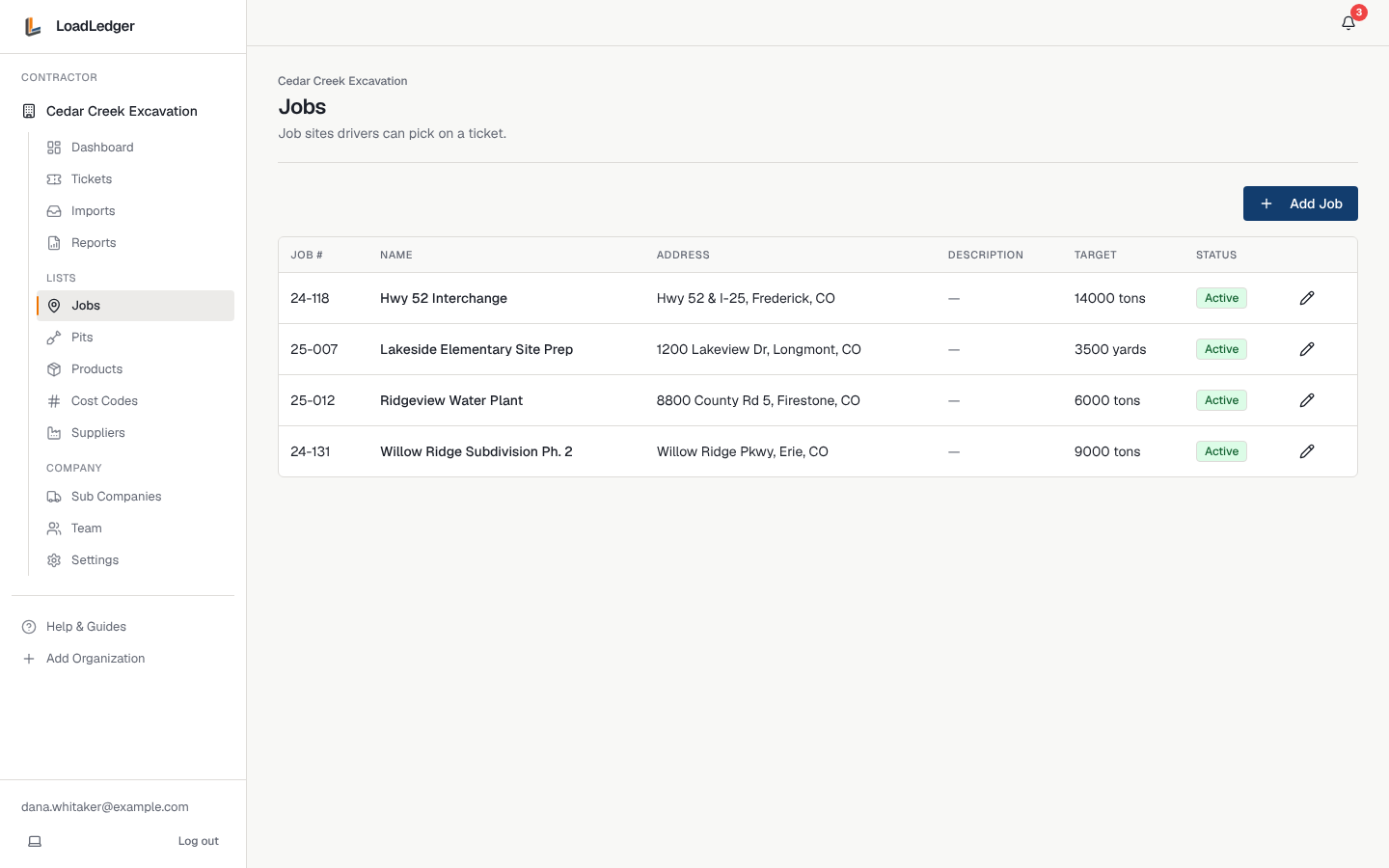
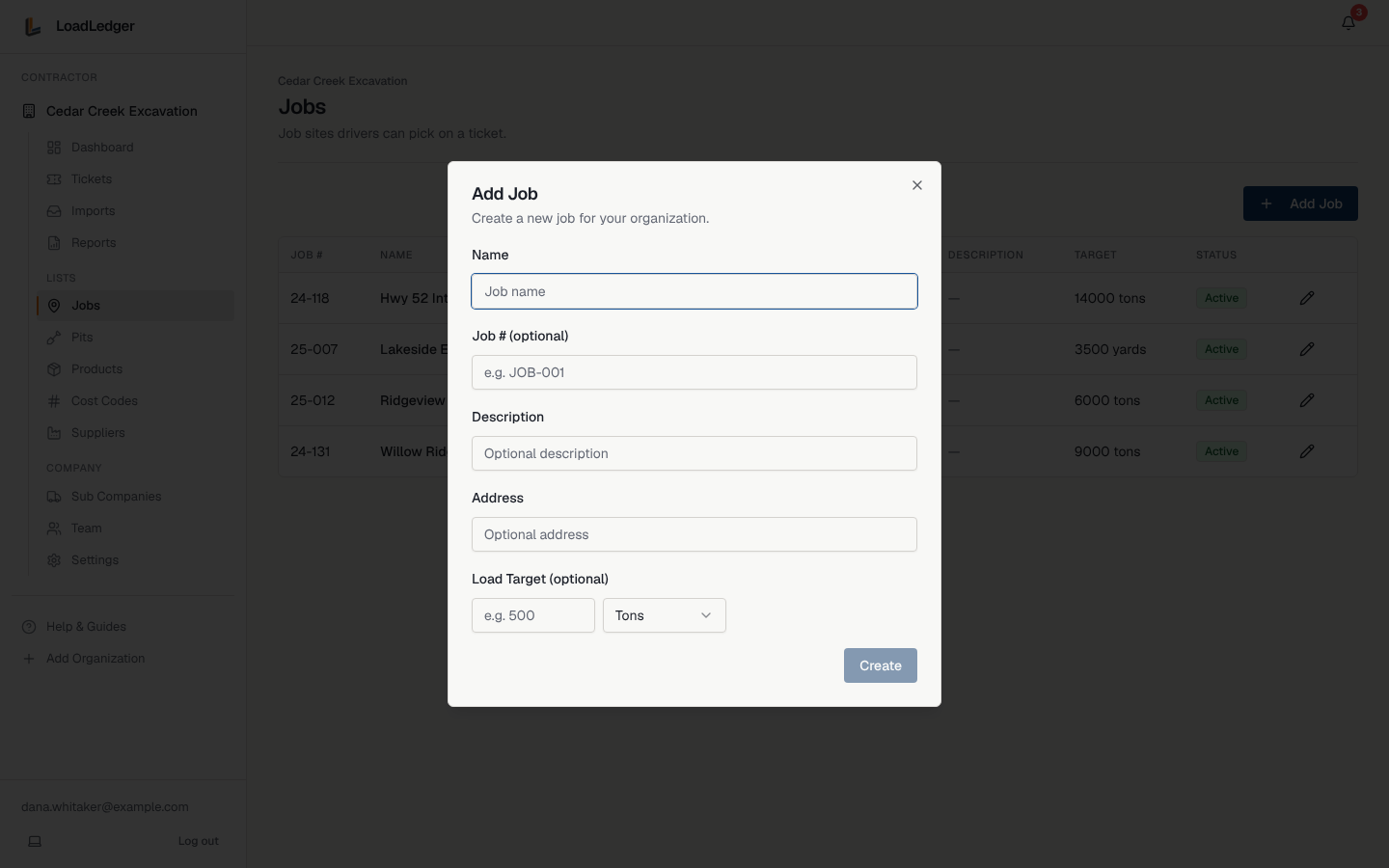
- Jobs: each job site, with an optional job number, address, and a load target (for example 14,000 tons) so you can track progress
- Pits: the pits and quarries trucks load from
- Products: the materials hauled (crushed rock, road base, fill, topsoil) and the unit each is usually measured in
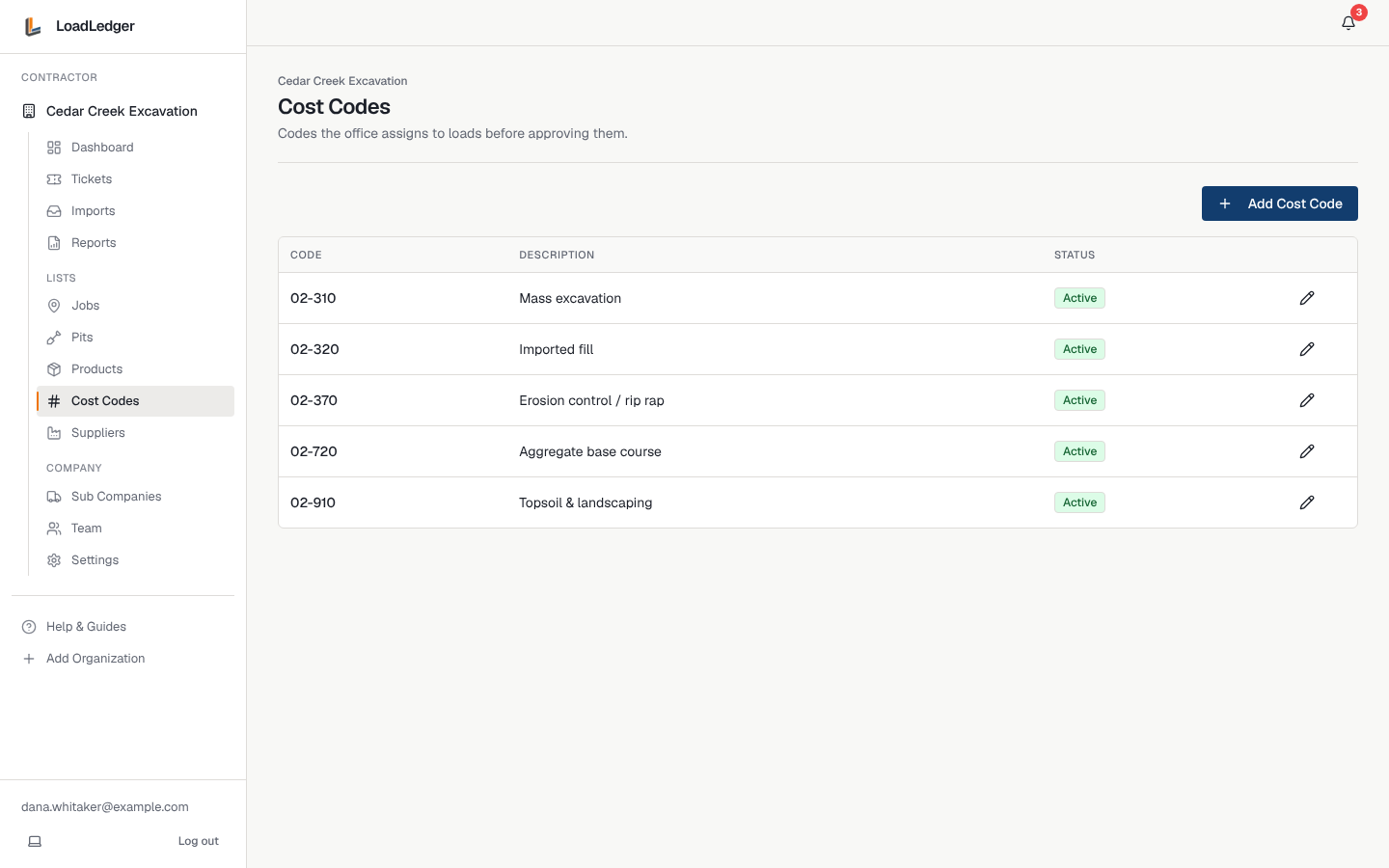
- Cost Codes: the codes the office assigns to loads before approving them
- Suppliers: the companies whose name is printed on the pit ticket
To add a job, open Jobs and click Add Job:
Use the pencil icon on any row to edit it or mark it inactive. Inactive items stop showing up in the driver app but stay on old tickets.
Drivers can also type a new pit, material or job right in the app if it isn't listed, so you don't have to have everything in place on day one.
What comes next
- Invite your office and field staff: Adding Drivers and Team Members
- Link the trucking companies you hire: Working with Subcontractors